Simple Setup
After deploying AlertD with the default CreateMonitoringRole setting (true), the IAM monitoring role was automatically created by CloudFormation. You only need to set up authentication for your team to start using AlertD.
Estimated time: 5-10 minutes, plus 15-25 minutes for the first data sync
This guide is for deployments where AlertD monitors the same AWS account it is deployed in. If you need AlertD to monitor a different AWS account, follow the Advanced Setup instead.
Phase 1: Authentication Setup
Step 1: Access the AlertD Application
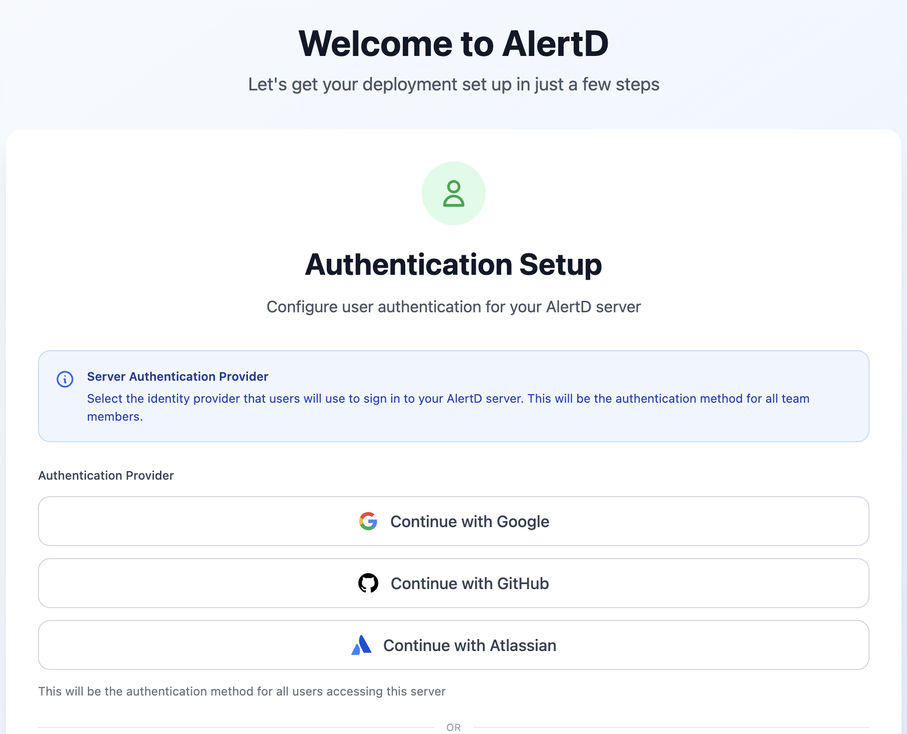
- Open the AlertDApplicationURL from your CloudFormation stack outputs
- Format:
https://d1234abcd.cloudfront.net - Or your custom domain if you configured one
- Format:
- You’ll see the Welcome to AlertD → Authentication Setup screen
Step 2: Choose How Users Sign In
The provider you choose here becomes the sign-in method for everyone on this AlertD server, so pick deliberately. You have two options:
Option A: Identity provider
- Continue with Google – Authenticate using your Google account
- Continue with GitHub – Authenticate using your GitHub account
- Continue with Atlassian – Authenticate using your Atlassian account
Option B: Create the admin account
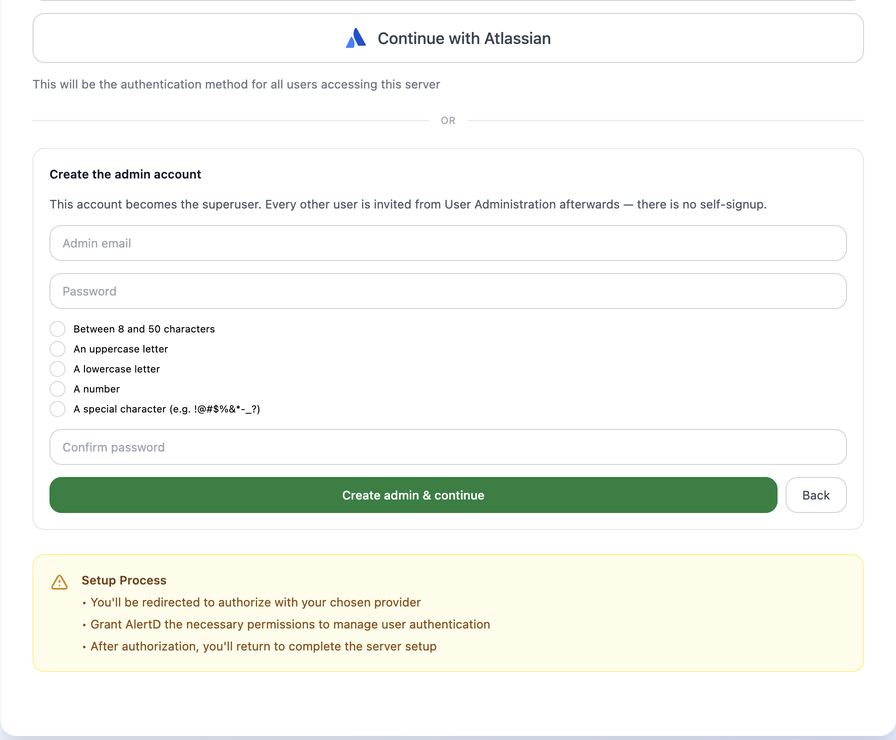
Below the providers, Create the admin account lets you set up a superuser with an email address and password, with no identity provider involved. The password must be 8–50 characters and include an uppercase letter, a lowercase letter, a number and a special character. Click Create admin & continue.
Not sure yet? Create the admin account first. It gets you into AlertD without setting up OAuth, and you can add Google, GitHub or Atlassian later from Settings → Login Providers. Keeping the email and password login alongside a provider also leaves you a way in if the provider is ever misconfigured.
Whichever option you choose, the first account becomes the superuser. There is no self-signup: invite every other user from User Administration afterwards.
Security Note: When you use an identity provider, AlertD does not store your credentials. Authentication is handled entirely by the provider’s OAuth flow.
Step 3: Complete Sign-In
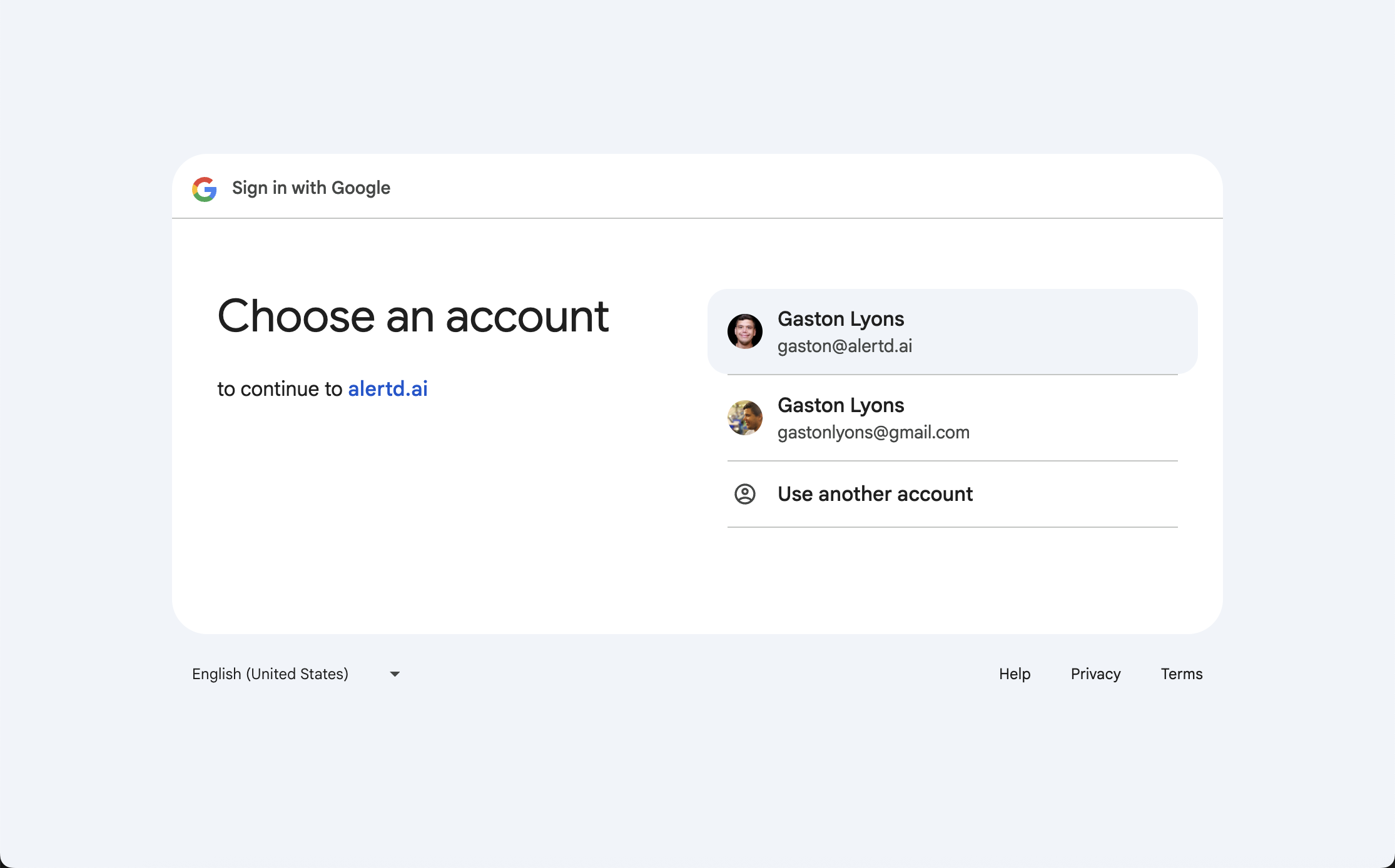
If you chose an identity provider:
- You’ll be redirected to your provider’s login
- For Google:
- Select the account you want to use for AlertD
- Click “Continue” to authorize
- For GitHub or Atlassian:
- Authorize the AlertD application
- Grant necessary permissions
- You’ll be redirected back to AlertD once authentication is complete
If you created the admin account: sign in on the login screen with the email and password you just set.
Phase 2: Access AlertD
Since you deployed with CreateMonitoringRole set to true, the IAM monitoring role was automatically created and configured. AlertD already knows the role ARN — no manual IAM steps are required.
Step 4: Wait for the First Data Sync
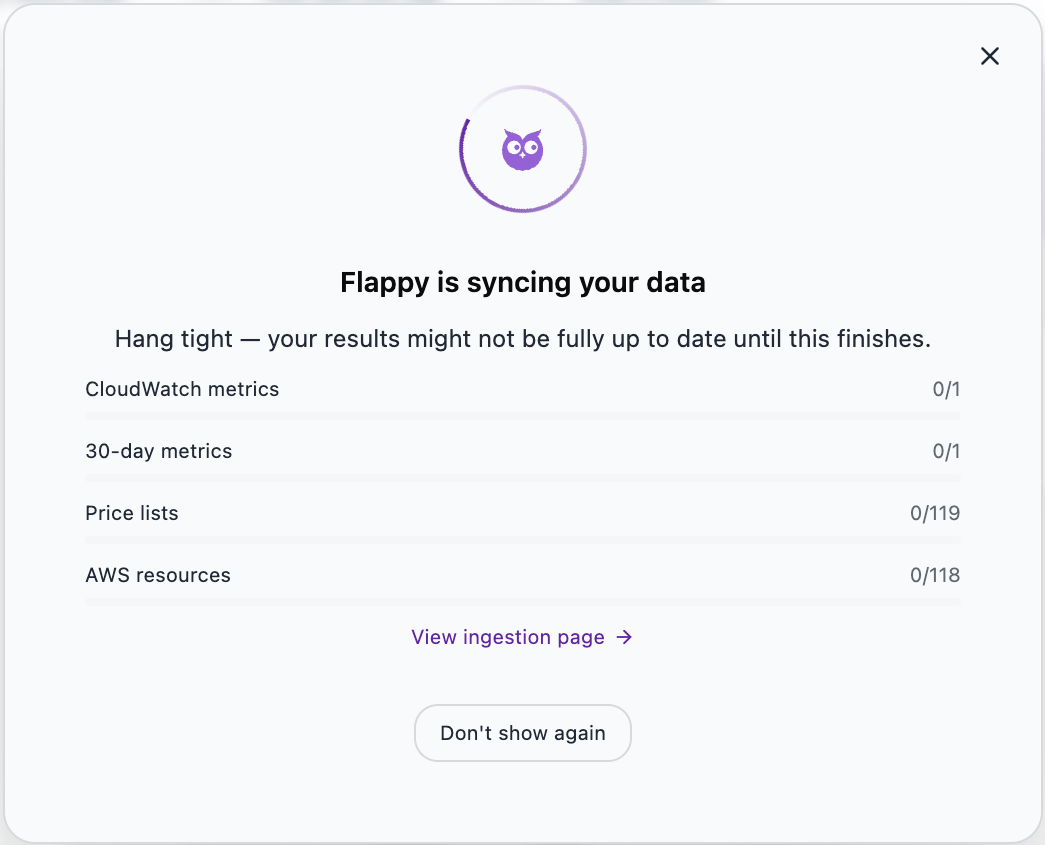
Right after your first sign-in, AlertD starts collecting data from your AWS account and shows a Flappy is syncing your data dialog with progress for:
- CloudWatch metrics
- 30-day metrics
- Price lists
- AWS resources
The header shows Ingesting while this runs.
Expect 15-25 minutes before you see data. The counters can sit at zero for most of that time, and the inventory page will show 0 resources until the first sweep finishes — then it fills in all at once. This is normal. If you close the dialog, check progress from Sources or the ingestion page.
Step 5: Explore the AlertD Workspace
Once the sync completes, the Inventory page shows your resources, services and regions. The sidebar groups AlertD’s views:
- Health, Performance, Alerts and Agent Chat
- Changes and Risks
- Inventory
- Economics and LLM Insights
- Integrations, Sources and Settings
Click New chat at the top of the page to ask your first question.
What to expect on day one:
- Performance and Health fill in more slowly than Inventory. The inventory comes from a single sweep of the AWS APIs, while CloudWatch metrics build up over time. Until they do, those pages may show only AlertD’s own stack resources.
- You may see one critical Prompt ingest stale alert per AWS region. The Bedrock prompt-ingest job runs nightly and hasn’t run yet on a new install. The alerts clear after the first nightly run, or you can start it immediately from Settings → Utilities → Re-ingest. Only LLM Insights is affected. See Bedrock Prompt Analysis.
Setup Complete!
Your AlertD deployment is fully configured and ready to use. You now have:
- A superuser account and your team’s sign-in method configured
- Auto-created IAM role with read-only permissions
- Access to the AlertD web interface
Troubleshooting
Authentication Issues
Problem: Cannot authenticate with Google, GitHub or Atlassian
Solutions:
- Ensure popup blockers are disabled
- Try a different browser
- Check that auth.demo.alertd.ai is accessible from your network
- Clear browser cache and cookies
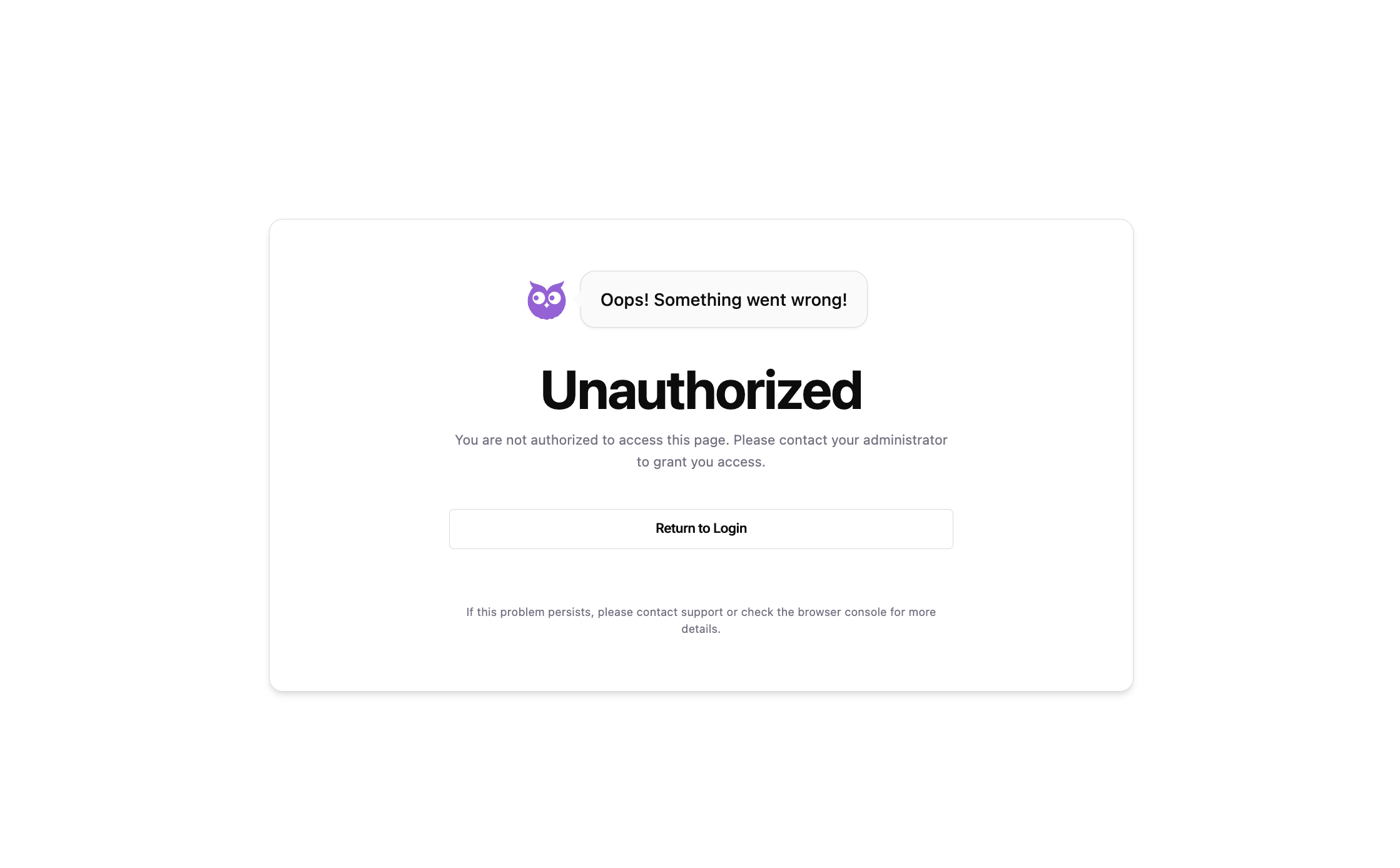
Problem: After logging into Google/Github, you reach the following screen error:
Solutions:
- This is a known bug. Return to the previous screen and reauthenticate. We are actively working to fix this issue.
Connection Issues
Problem: Setup completion hangs or times out
Solutions:
- Verify ECS tasks are running in your CloudFormation stack
- Check that the load balancer target group shows the application as
healthy - Ensure private subnets have NAT Gateway for outbound internet access
- Review CloudWatch logs for the AlertD ECS tasks
No Data After Setup
Problem: Inventory still shows 0 resources
Solutions:
- Wait at least 25 minutes after your first sign-in; the first sync can show nothing until it finishes
- Check Sources for the ingest plan and its last-run status
- Confirm the monitoring role exists in IAM (it is created by the stack when
CreateMonitoringRoleistrue)