Deploying AlertD to AWS
This guide walks you through deploying AlertD to your AWS account using CloudFormation. The deployment creates a fully managed, containerized application running on ECS Fargate, served to your users over HTTPS through an Amazon CloudFront distribution.
Estimated time: 15-20 minutes
First time using ECS in this account? Create the ECS service-linked role before you deploy. CloudFormation does not create it for you, and without it the stack rolls back when it tries to create the ECS cluster:
aws iam create-service-linked-role --aws-service-name ecs.amazonaws.comIf the command returns Service role name AWSServiceRoleForECS has been taken in this account, the role already exists and you can continue. See Troubleshooting.
Step 0: Subscribe to AlertD on AWS Marketplace
AlertD is available on the AWS Marketplace.
AlertD is publicly available — any AWS account can subscribe, with a free 30-day trial and no contract.
Subscribe to AlertD
Open the listing from the link below rather than searching Marketplace. Searching for “AlertD” returns several similarly named AlertD listings, including committed-contract offers. The pay-as-you-go listing says Free 30 Day Trial. No contract. in its overview.
- Visit the AWS Marketplace listing: AWS Marketplace - AlertD
- Click View purchase options
- Review the offer and usage-based pricing, then submit the subscription
- Wait for the confirmation page. AWS shows “Your request is in progress, this will take a few minutes. Don’t refresh or close this page.” — leave the tab open until it completes
- When the page confirms your agreement is Active, your subscription is ready
Once subscribed, proceed with the CloudFormation deployment below.
Step 1: Open CloudFormation Console
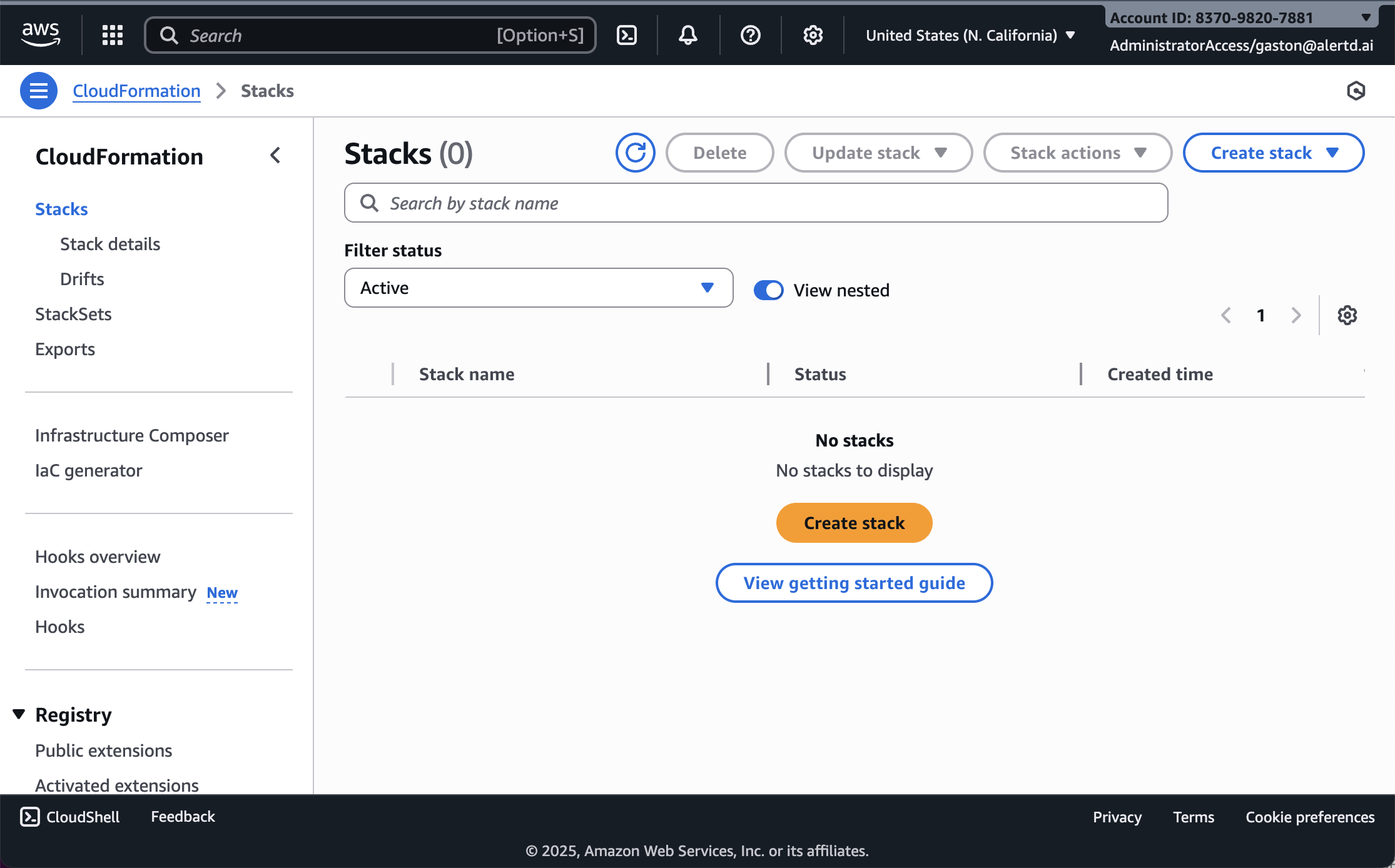
- Sign in to your AWS Management Console
- Navigate to CloudFormation → Stacks
- Ensure you’re in the correct AWS region where you want to deploy AlertD (see supported regions)
- Verify the Stacks view is displayed
If your organization has already pushed an AlertD monitoring role to this account through CloudFormation StackSets, you’ll see a stack named like StackSet-AlertDRole-… here. Leave it in place — see Step 7 for how it affects the CreateMonitoringRole choice.
Step 2: Create a New Stack
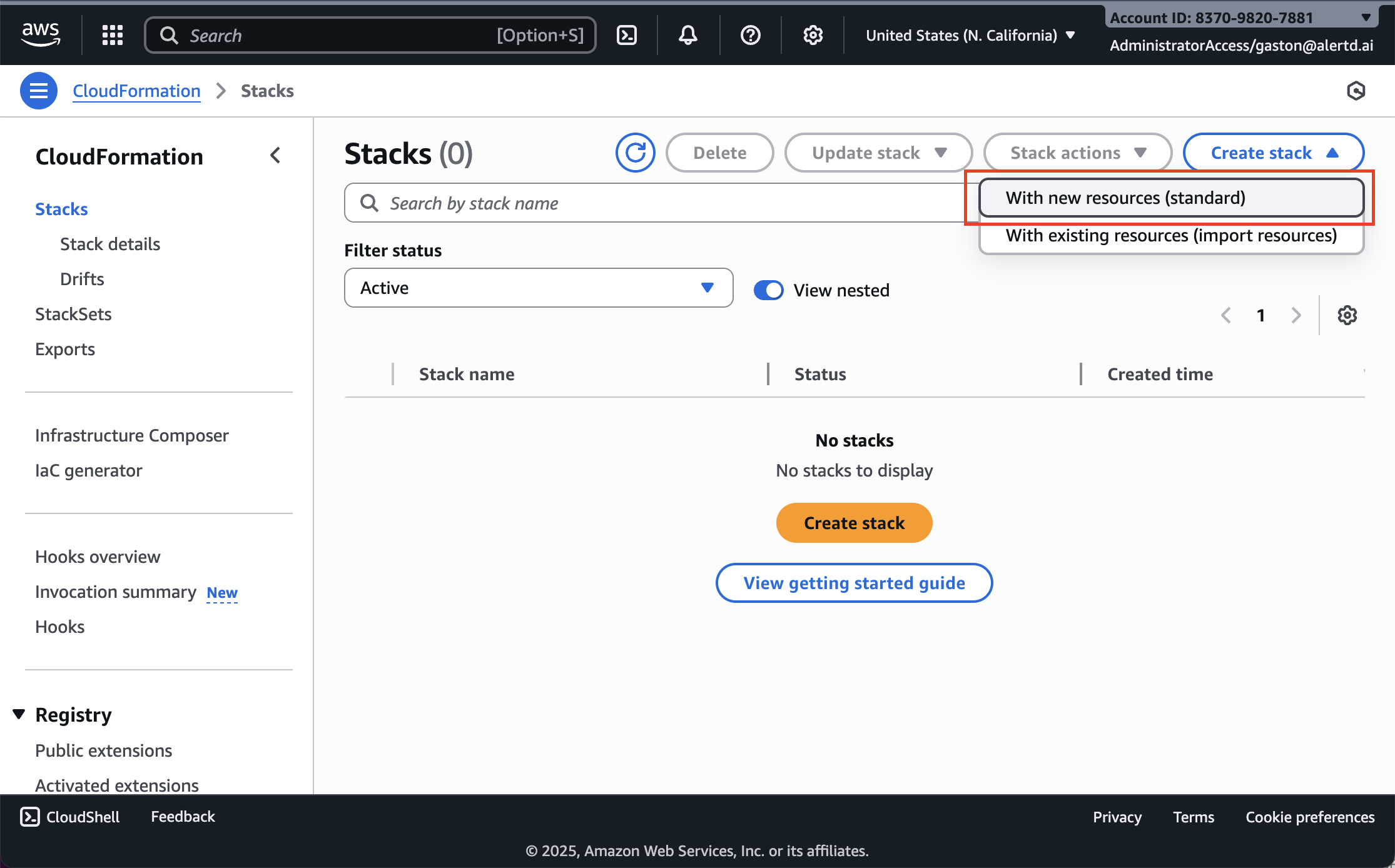
- Click Create stack
- In the dropdown, select With new resources (standard)
- This will initiate a new CloudFormation stack deployment
Step 3: Specify the AlertD Template
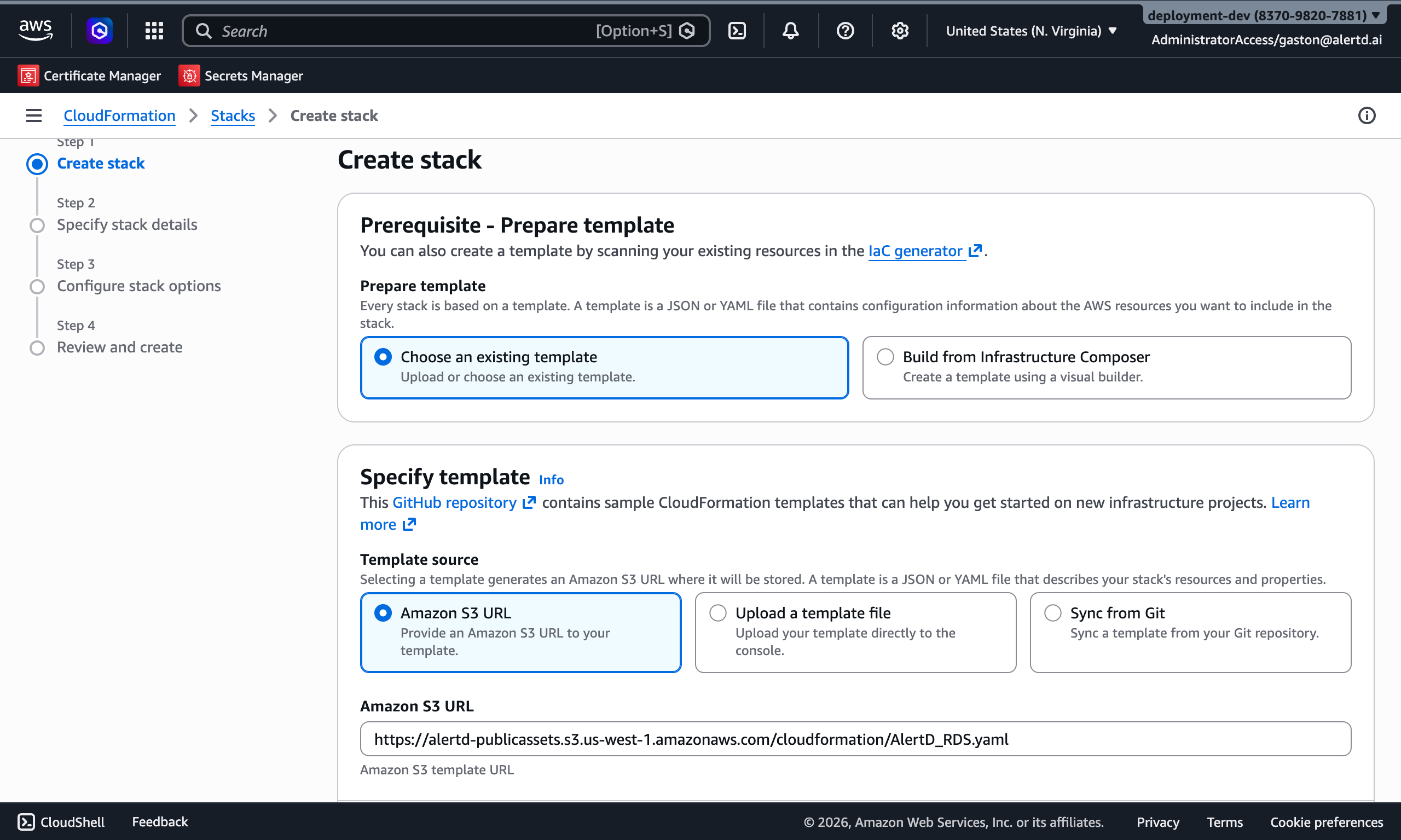
- Under Prerequisite – Prepare template, select Choose an existing template
- Under Specify template, select Amazon S3 URL
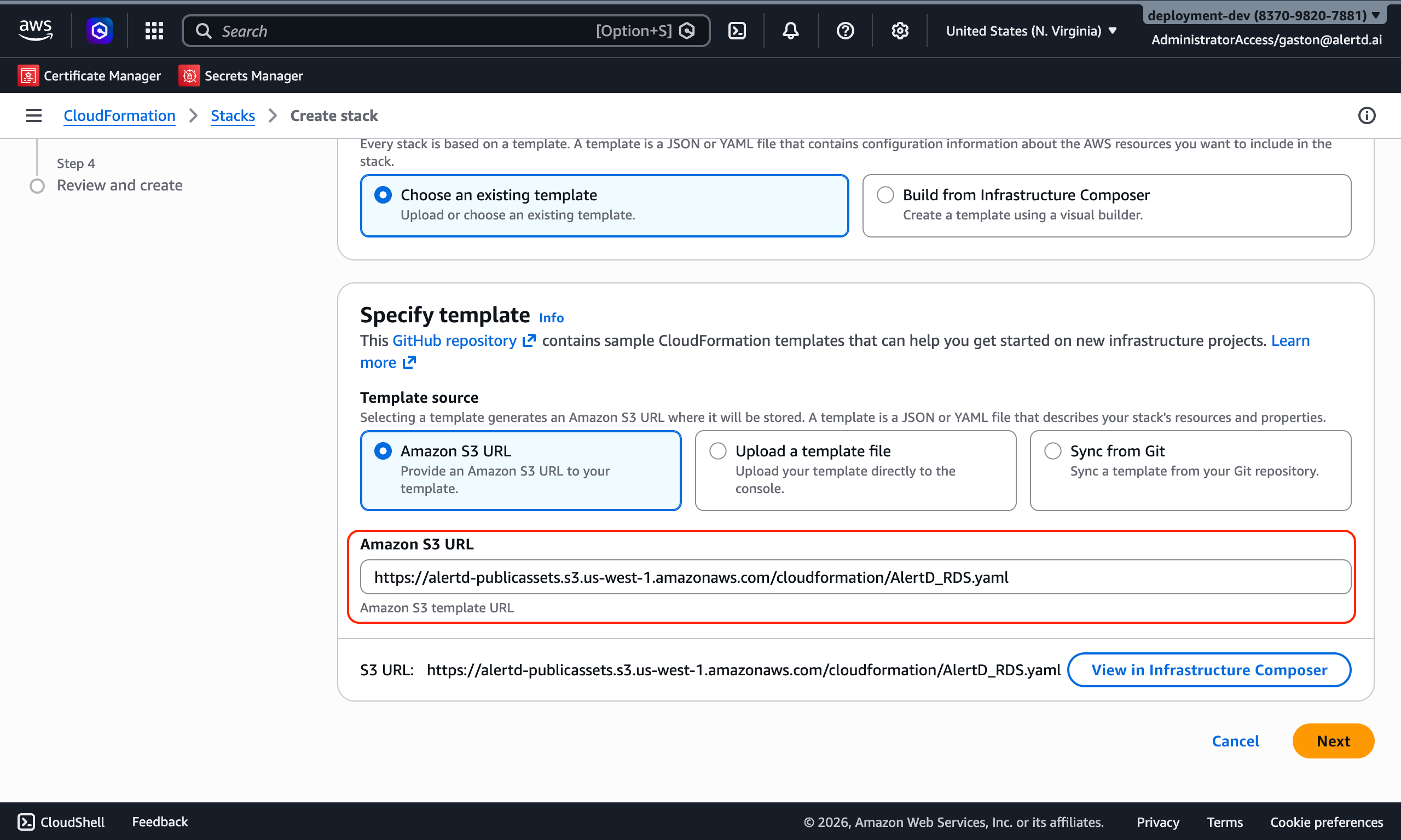
- Paste the AlertD CloudFormation template URL:
https://alertd-publicassets.s3.us-west-1.amazonaws.com/cloudformation/AlertD_PAYG.yml- Click Next to proceed to stack configuration
Step 4: Configure Stack Name and Domain
Stack Name
Enter a descriptive stack name:
alertdThe stack name prefixes the names of the resources AlertD creates (for example alertd-aurora-cluster), so keep it short.
Domain & Certificate Configuration (Optional)
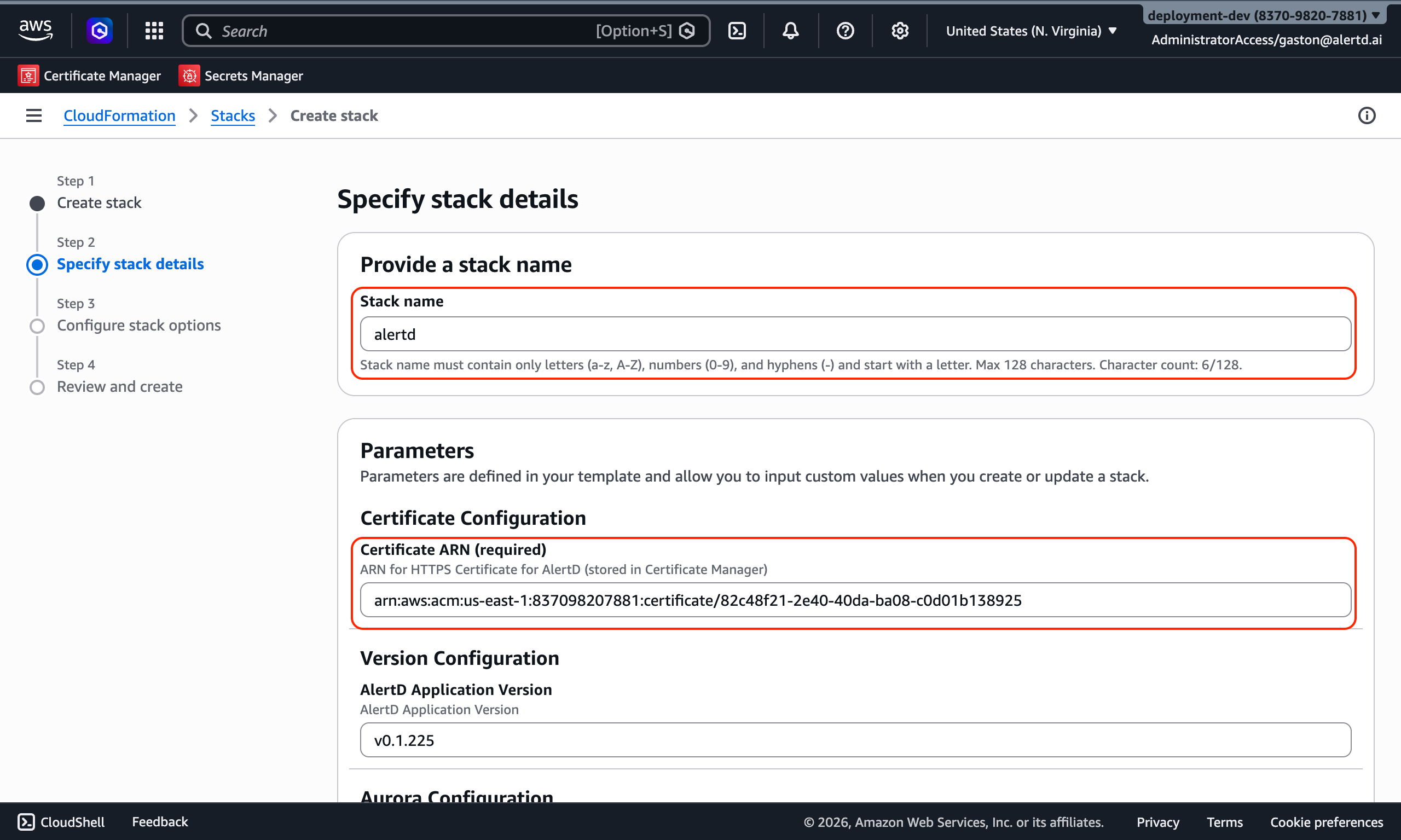
AlertD is served through Amazon CloudFront. If you leave both fields blank, CloudFront gives your deployment a working HTTPS URL on its default *.cloudfront.net domain — no domain or certificate needed. This is the quickest way to get started.
To serve AlertD from your own domain instead, fill in both fields:
- Custom Domain Name (
DomainName): the host name users will visit, for examplealertd.example.com - Certificate ARN (us-east-1) (
CertificateArn): the ARN of an ACM certificate that covers that host name
The certificate must be in us-east-1 (N. Virginia), whatever region you deploy AlertD to. CloudFront only accepts ACM certificates from us-east-1. For example, if you deploy AlertD in eu-west-1, request or import the certificate in us-east-1. The ARN looks like arn:aws:acm:us-east-1:123456789012:certificate/...
- The certificate must be issued (validated) and trusted — CloudFront does not accept self-signed certificates
- If you provide a Custom Domain Name without a Certificate ARN, CloudFormation rejects the stack before creating anything
- You can leave both blank now and add a custom domain later with a stack update (see Step 16)
- See the prerequisites guide for how to request a certificate
Step 5: Configure Version and Aurora Capacity
- AlertD Application Version (
Version): the AlertD release to run. It defaults to the release the template was published with — leave it unchanged. - Minimum Aurora Capacity Units (ACU) (
AuroraMinCapacity): default2 - Maximum Aurora Capacity Units (ACU) (
AuroraMaxCapacity): default16
Aurora Serverless v2 scales between these two values. The defaults suit most environments.
Step 6: Configure Model API Keys (Optional)
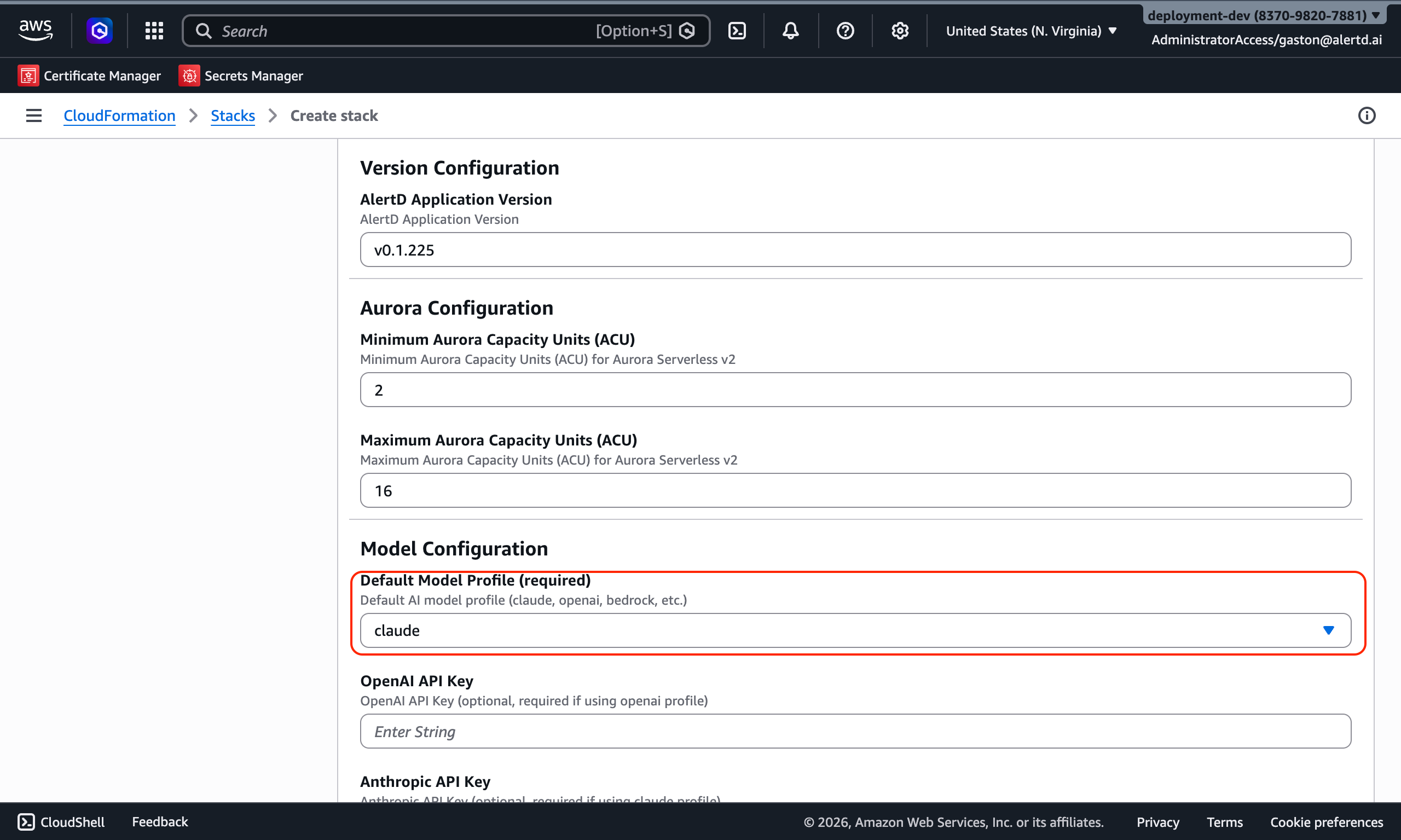
By default AlertD uses Amazon Bedrock, which needs no API key — leave this whole section blank to use it. Bedrock inference is billed on your AWS bill.
The Model Configuration section holds optional credentials if you want AlertD to use an external LLM provider instead:
- OpenAI API Key — your OpenAI key
- OpenAI Endpoint — an OpenAI-compatible API endpoint URL, if you use one instead of OpenAI’s default
- Anthropic API Key — your Anthropic API key
- Gemini API Key — your Google Gemini API key
Leave any field blank that you don’t need. If all key fields are blank, AlertD uses Bedrock.
API keys will be stored securely in AWS Secrets Manager. Ensure you’re pasting each key into the field for its provider.
Step 7: Configure Monitoring Role
Create Monitoring Role
This parameter controls whether CloudFormation automatically creates the IAM role that AlertD uses to monitor your AWS infrastructure.
-
true(default) — Automatically creates an IAM role withReadOnlyAccessand the correct trust policy. Use this if AlertD will monitor the same AWS account it is deployed in. No manual IAM configuration is needed — proceed to Simple Setup after deployment. -
false— Does not create a monitoring role. Use this if AlertD will monitor a different AWS account. You will need to manually create the IAM role in the target account during Advanced Setup.
Most users should leave this set to true. Only set it to false if you need AlertD to monitor resources in a different AWS account than the one where AlertD is deployed. If your platform team manages IAM centrally, ask whether an AlertD role has already been deployed through StackSets before you create another one.
Step 8: Configure Data Retention
Stack Delete Policy
StackDeletePolicy decides what survives if you ever delete the stack:
Snapshot DB and Delete bucket(default) — takes a final Aurora snapshot, then deletes everything elseRetain DB and Bucket— keeps the Aurora cluster, the storage bucket and the VPC, so you can delete the stack and later relaunch it against the same data by importing those resources
You can change this later with a stack update; the change doesn’t touch any running resource.
Step 9: Configure Networking
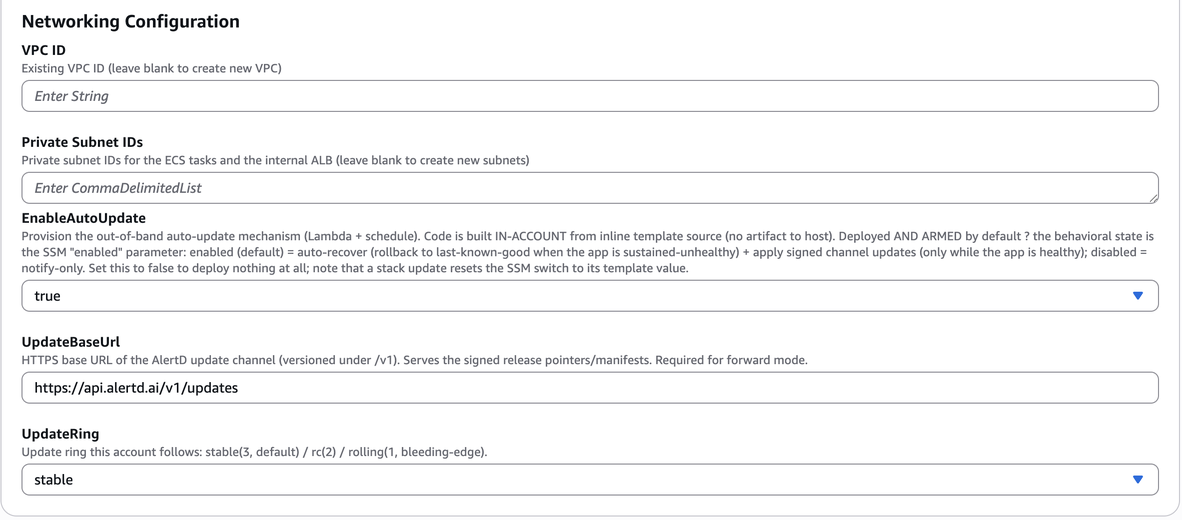
AlertD can deploy in a new VPC or use your existing network infrastructure. In both cases the load balancer is internal — CloudFront reaches it privately through a CloudFront VPC origin, so nothing in your VPC is exposed to the internet.
Option A: New VPC (Default)
Leave both fields blank, and CloudFormation will automatically create:
- New VPC with public and private subnets across 2 availability zones
- NAT Gateway for private subnet internet access
- Security groups and routing tables
Option B: Existing VPC
If deploying into an existing VPC, provide:
- VPC ID: Your existing VPC identifier (e.g.,
vpc-0123456789abcdef0) - Private Subnet IDs: Comma-separated list of private subnet IDs for the ECS tasks and the internal load balancer
- Example:
subnet-abc123,subnet-def456 - Must have outbound internet access via NAT Gateway
- Example:
No public subnets are needed.
When using an existing VPC, ensure the subnets span at least 2 availability zones, and that those zones support CloudFront VPC origins. A few zones don’t (for example use1-az3 in us-east-1); the stack checks your subnets and stops early if one is in an unsupported zone.
Step 10: Configure Auto-Update
The last three parameters control AlertD’s auto-update mechanism, a small Lambda function that runs on a schedule in your account:
| Parameter | Default | What it does |
|---|---|---|
EnableAutoUpdate | true | Deploys the auto-update function. While enabled, it rolls AlertD back to the last known-good release if the application stays unhealthy, and applies signed updates from your update ring while the application is healthy. Set to false to deploy nothing. |
UpdateBaseUrl | https://api.alertd.ai/v1/updates | The AlertD update channel that serves the signed release information. Leave it unchanged. |
UpdateRing | stable | Which release track to follow: stable (default), rc, or rolling (newest releases first). |
Auto-update needs outbound HTTPS access to api.alertd.ai. If your VPC has no internet egress, set EnableAutoUpdate to false.
When auto-update is deployed, its on/off switch is an SSM parameter. A stack update resets that switch to its default (enabled), so if you turn auto-update off through SSM, turn it off again after each stack update — or set EnableAutoUpdate to false.
Click Next to continue.
Step 11: Configure Stack Options
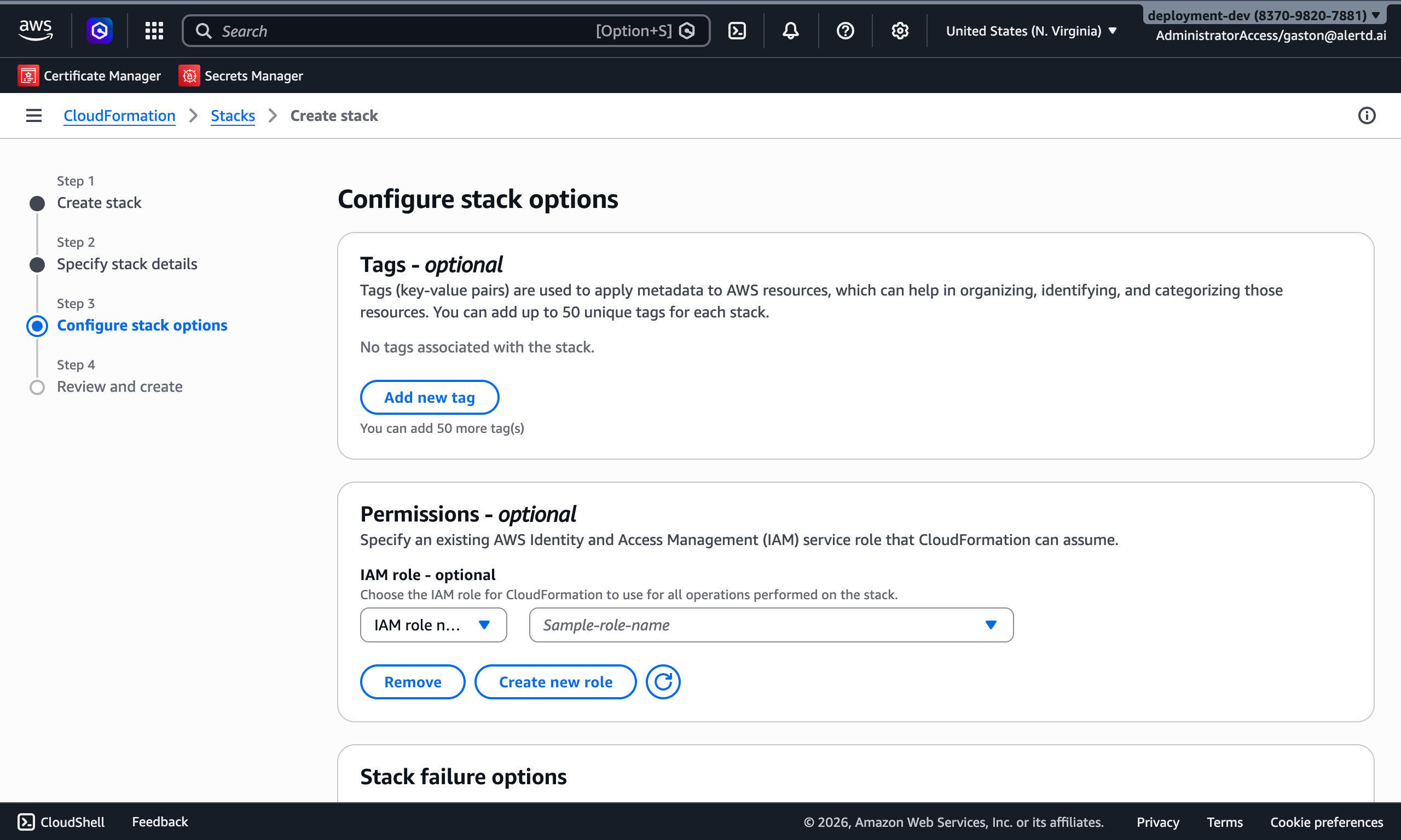
On the Configure stack options page:
- (Optional) Add tags to help identify your resources
- Example:
Environment: Production,Team: DevOps
- Example:
- (Optional) Assign an IAM Role for CloudFormation
- Leave blank to use your current credentials
- Keep rollback, notification, and timeout settings as default
- (Recommended) Under Stack creation options, activate Termination protection so the stack can’t be deleted by accident
Scroll down to the capabilities section.
Step 12: Acknowledge IAM Resource Creation
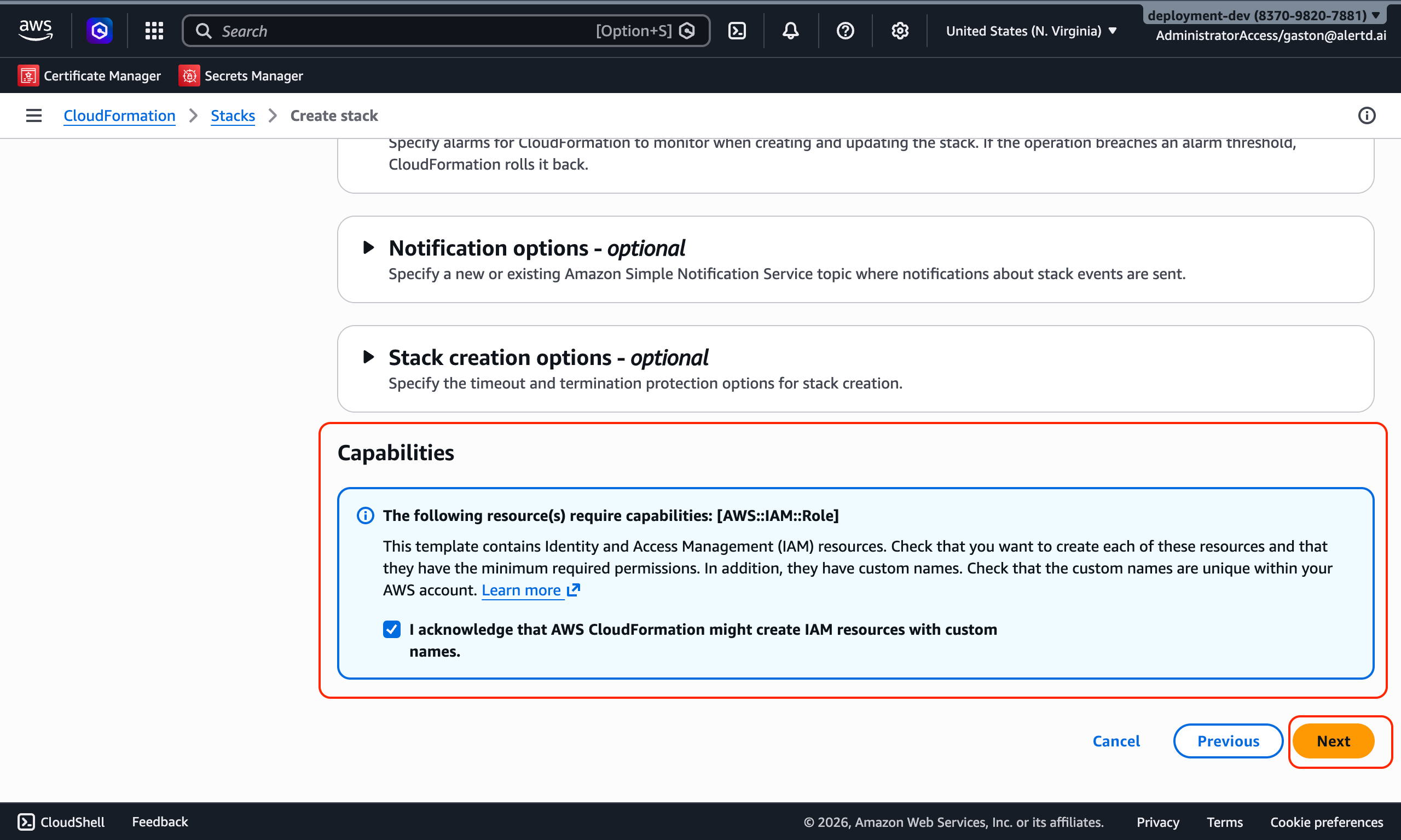
CloudFormation needs permission to create IAM roles and resources for AlertD.
- Locate the Capabilities section at the bottom of the page
- Check the box that states:
☑ I acknowledge that AWS CloudFormation might create IAM resources with custom names.- This acknowledgment is required because AlertD creates:
- The ECS task execution role and the AlertD task role
- The read-only monitoring role (if
CreateMonitoringRoleistrue) - Roles for the Lambda functions that support deployment and auto-update
Click Next to proceed to the review page.
Step 13: Review and Submit
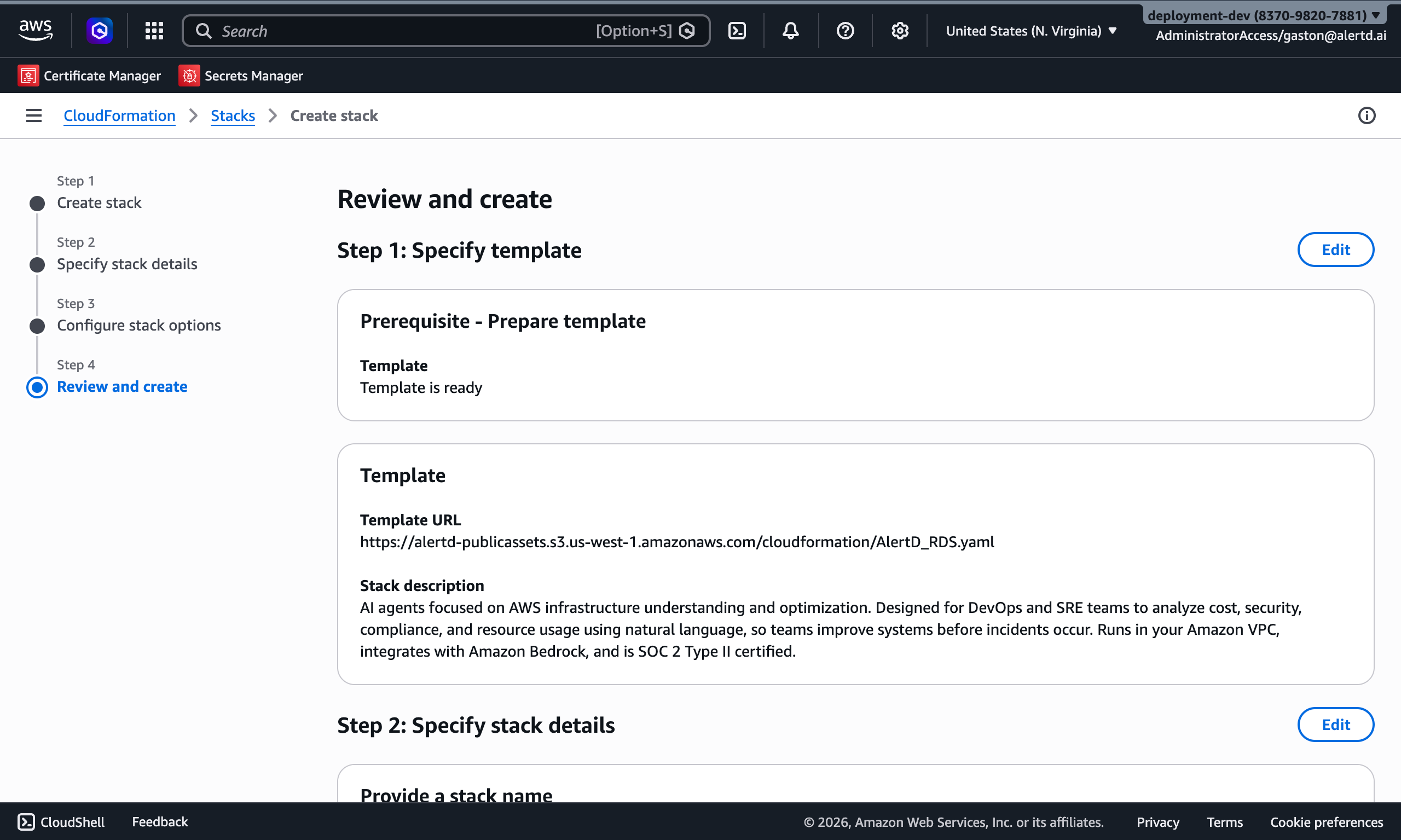
The Review and create page displays a summary of all your configuration:
Review These Critical Settings:
- Template URL: Verify it points to the AlertD CloudFormation template
- Stack Name: Confirm stack name is correct
- Custom Domain Name and Certificate ARN: Both blank, or both set with a
us-east-1certificate - Model Configuration: Verify any API keys you entered
- Networking Configuration: Confirm VPC and subnet settings
- Termination protection: Activated, if you chose to
Submit the Stack
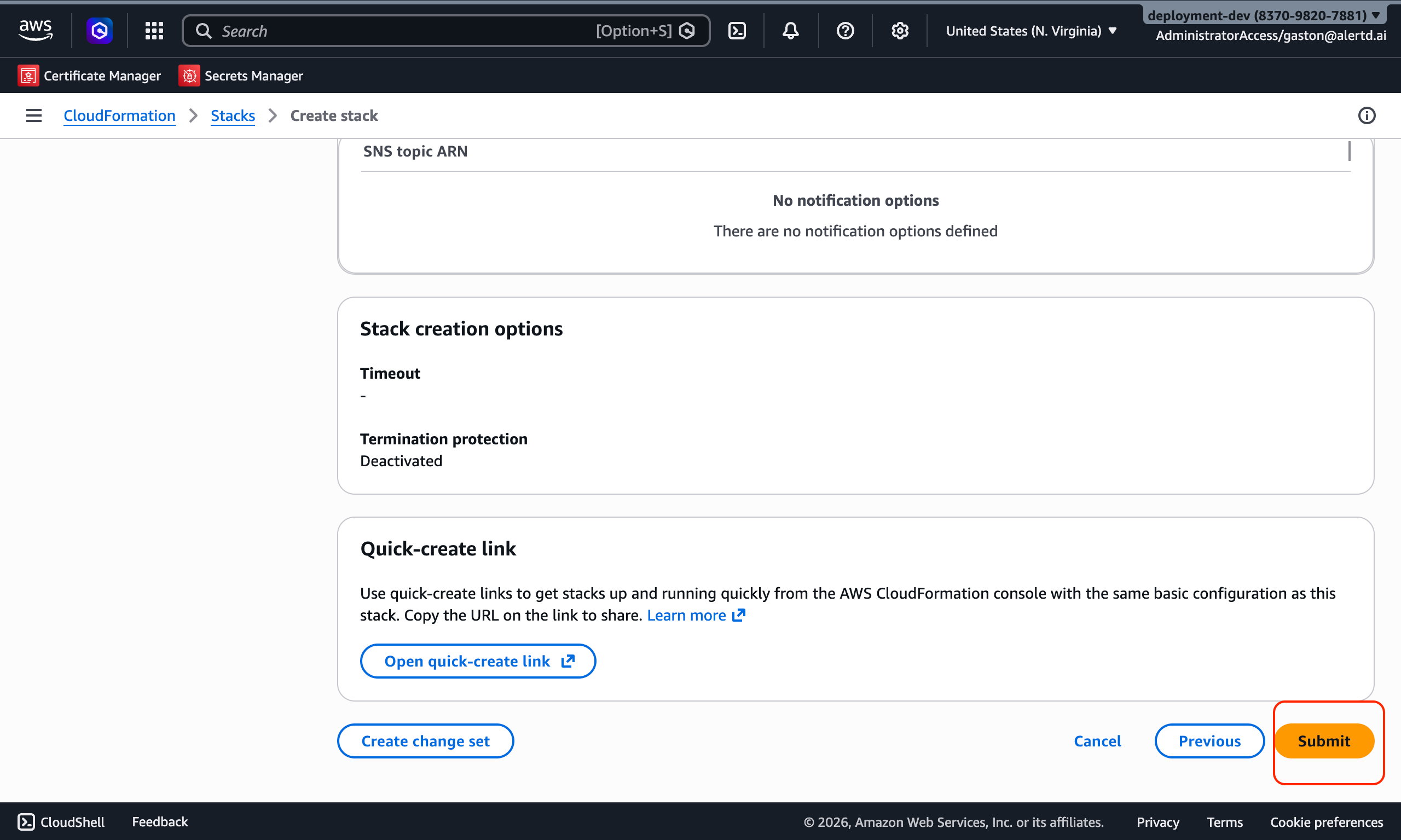
- Carefully review all parameters
- If everything looks correct, click Submit at the bottom of the page
- CloudFormation will begin creating your AlertD infrastructure
Step 14: Monitor Stack Creation
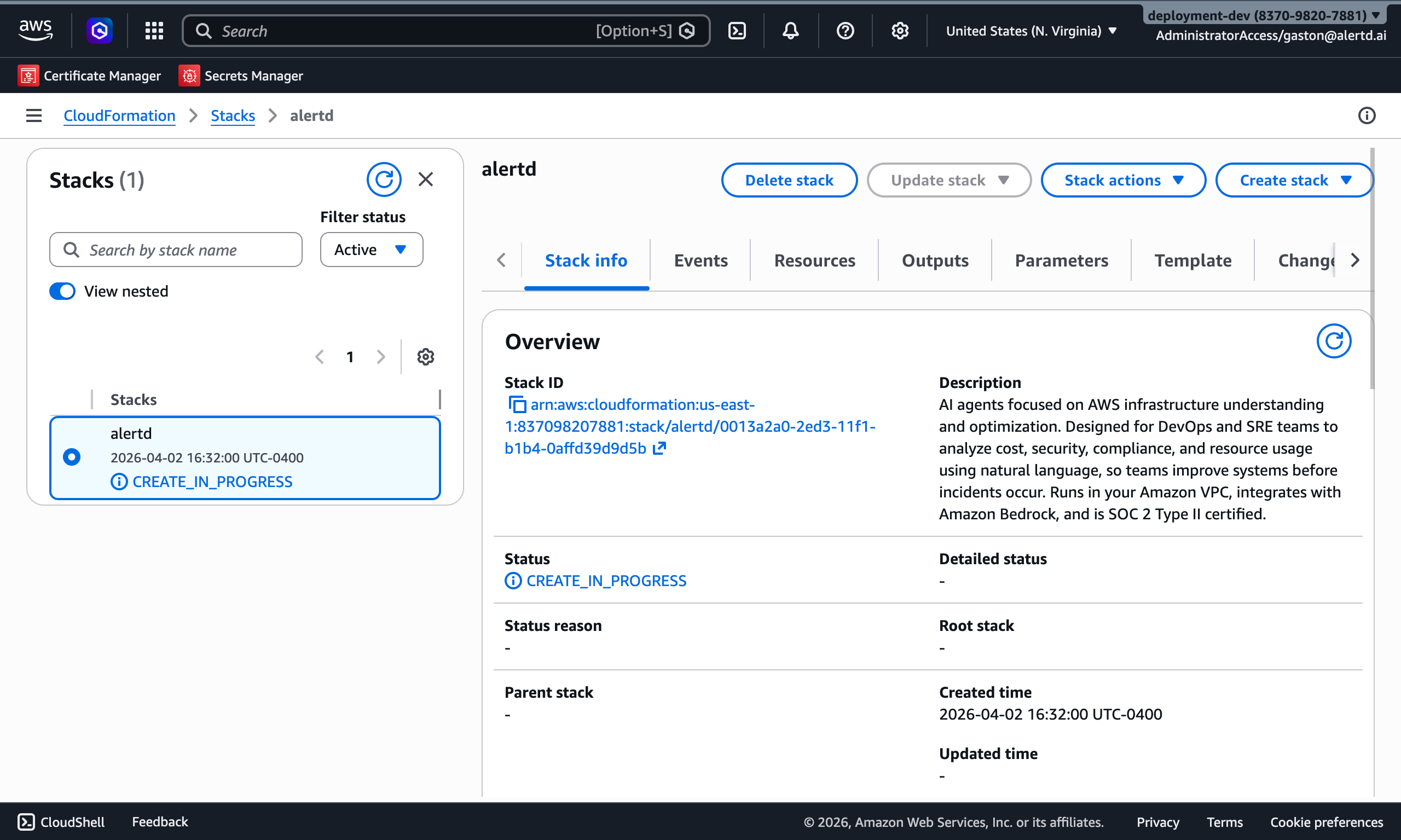
After submission, CloudFormation begins provisioning resources:
- The stack status will show CREATE_IN_PROGRESS
- You can monitor progress in the Events tab
- CloudFormation creates, roughly in this order:
- VPC, subnets, and networking components (if new VPC)
- Security groups
- Aurora Serverless v2 (PostgreSQL-compatible) cluster
- S3 storage bucket
- ECS cluster and task definitions
- Internal load balancer and target group
- ECS services
- CloudFront VPC origin and distribution
- Auto-update function (if enabled)
Expected duration: 10-15 minutes
You can safely close this window and return later. CloudFormation will continue running in the background.
Step 15: Verify Stack Completion
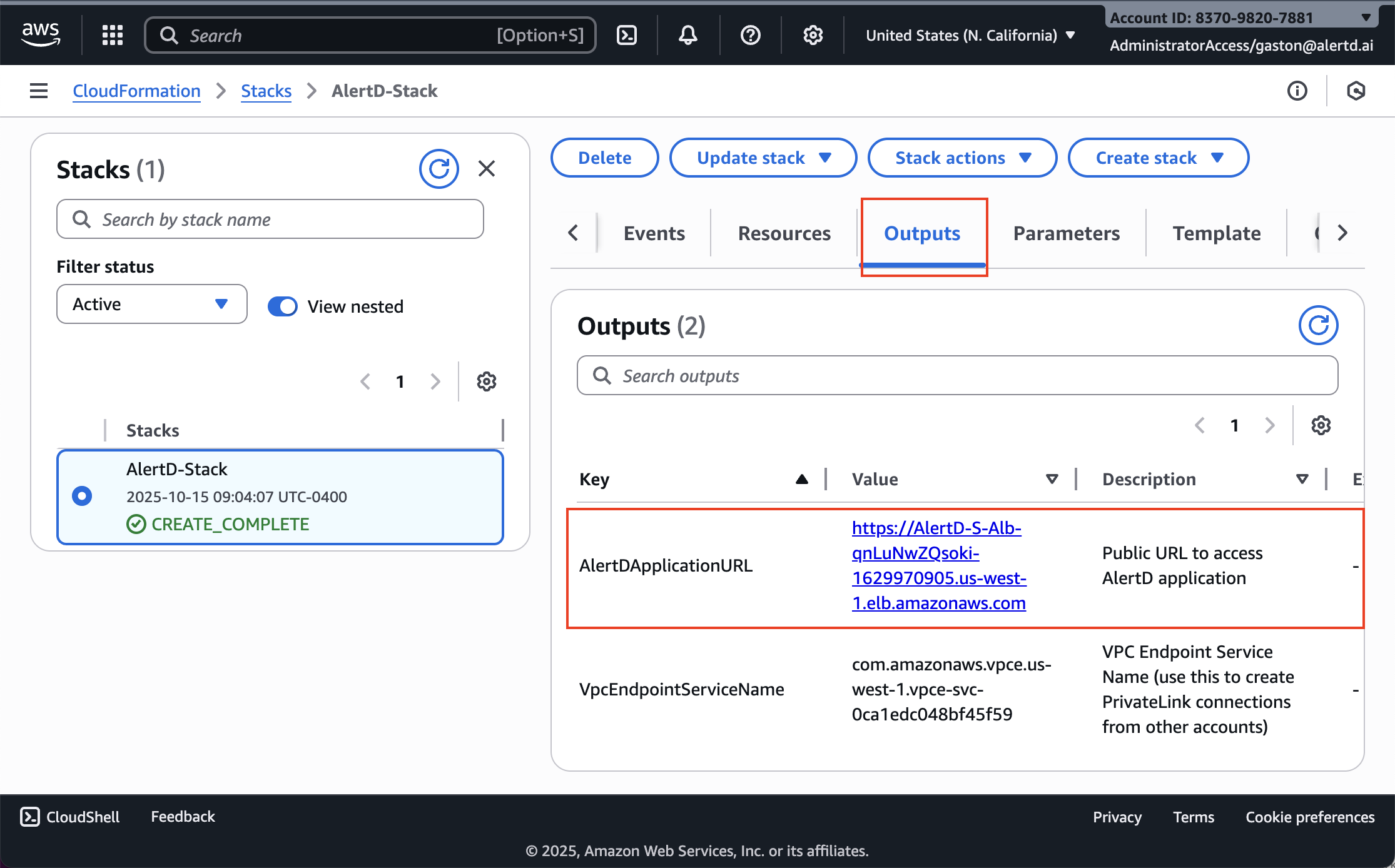
When deployment finishes:
- The stack status updates to CREATE_COMPLETE (green checkmark)
- Click the Outputs tab
- Record the following important values:
Critical Outputs
AlertDApplicationURL
- The public URL for accessing your AlertD web application
- Format:
https://d1234abcd.cloudfront.net, orhttps://<your custom domain>if you set one - You’ll use this URL to access AlertD and complete setup
CloudFrontDomainName
- The CloudFront distribution’s domain name, for example
d1234abcd.cloudfront.net - Point your custom domain’s DNS record here (see Step 16)
Other Outputs
| Output | Description |
|---|---|
LoggingBucketName | S3 bucket for AlertD application storage and logs |
AuroraClusterEndpoint | Aurora PostgreSQL writer endpoint |
AuroraClusterReadEndpoint | Aurora PostgreSQL reader endpoint |
AuroraClusterPort | Aurora PostgreSQL port (5432) |
TaskRoleArn | ARN of the AlertD task role. Needed when you deploy monitoring roles to other accounts that must trust this installation (see Advanced Setup) |
StandaloneTaskCreatorFunction | Lambda function AlertD uses to launch crawl tasks for multi-account monitoring |
Save these outputs! You’ll need the AlertDApplicationURL in the next step.
Step 16: Configure a Custom Domain (Optional)
Skip this step if you’re using the default *.cloudfront.net URL.
If you set Custom Domain Name and Certificate ARN in Step 4, point that domain at CloudFront.
Create a DNS Record
In your DNS provider (e.g., Route 53, Cloudflare), create a CNAME record:
Type: CNAME
Name: alertd.example.com
Value: <CloudFrontDomainName from CloudFormation Outputs>
Example:
alertd.example.com → d1234abcd.cloudfront.netIn Route 53 you can use an Alias record pointing to the CloudFront distribution instead of a CNAME.
Verify SSL Certificate
- Ensure your ACM certificate in
us-east-1covers the custom domain you’re using - The certificate should be validated before DNS propagation completes
- DNS changes typically propagate within 5-60 minutes
Adding a Custom Domain Later
If you deployed without a custom domain, choose Update stack → Use existing template, set Custom Domain Name and Certificate ARN (us-east-1), and submit. When the update completes, create the DNS record above.
Step 17: Verify the Deployment
Before handing AlertD to your team, run through this short smoke test to confirm the stack is healthy and the application is serving traffic. The whole check takes 2–3 minutes.
1. Confirm the Stack Status
In CloudFormation → Stacks, the AlertD stack must be in state CREATE_COMPLETE with no failed events on the Events tab.
2. Confirm the ECS Services Are Stable
In ECS → Clusters → <AlertD cluster> → Services, each service should show:
- Running tasks equal to Desired tasks
- Deployment rollout status
COMPLETED - No tasks in Stopped state with recent timestamps
3. Confirm the Load Balancer Target Group Is Healthy
In EC2 → Load Balancers → Target groups, the application target group should show every registered target with Health status = healthy. An unhealthy target indicates the application is not responding to the load balancer’s health check.
4. Confirm the Application Started Cleanly
Tail the application log stream and look for the startup banner with no ERROR or stack-trace lines:
aws logs tail /ecs/<stack-name>/app --since 10mIf you see repeated errors or a crash loop, check the first lines of the newest log stream for the startup failure.
5. Open the Application in a Browser
Visit your AlertDApplicationURL in a browser. You should see the Welcome to AlertD → Authentication Setup screen, served over HTTPS with a valid certificate.
The load balancer is internal and only accepts requests that come through your CloudFront distribution. Always use AlertDApplicationURL — the load balancer’s own DNS name isn’t reachable from outside the VPC.
If all five checks pass, the deployment is verified. Proceed to either the Simple Setup or Advanced Setup to complete the application-level configuration.
✅ Deployment Complete!
Your AlertD infrastructure is now running in your AWS environment. The application consists of:
- Amazon CloudFront distribution terminating HTTPS for your users
- Internal Application Load Balancer, reachable only from CloudFront through a VPC origin
- ECS Fargate Cluster running the AlertD app and Pulsar services
- Aurora Serverless v2 (PostgreSQL-compatible) cluster as the primary data store
- Amazon S3 bucket for application storage and logs
- Private Service Discovery for internal service communication
- CloudWatch Logs capturing application logs
- Secrets Manager storing database credentials and API keys securely
- Auto-update Lambda function (if
EnableAutoUpdateistrue)
Resources Created
The CloudFormation stack creates resources including:
- VPC with public/private subnets (if new VPC option selected)
- NAT Gateway and Internet Gateway (if new VPC option selected)
- Security groups for each service, with the load balancer accepting traffic only from CloudFront
- ECS task definitions and services
- Internal Application Load Balancer with listener and target group
- CloudFront VPC origin and distribution
- S3 bucket and file system for application storage
- CloudWatch log groups
- Service discovery namespace
- Lambda functions for deployment helpers and auto-update
Next Steps
Now that AlertD is deployed, you need to complete the initial setup. Choose the path that matches your deployment:
-
Same-account monitoring (CreateMonitoringRole =
true, the default): The IAM role was created automatically. Proceed to the simple setup to authenticate and start using AlertD. -
Cross-account monitoring (CreateMonitoringRole =
false): You need to manually create an IAM role in the target account. Proceed to the advanced setup.
Troubleshooting
Stack Creation Failed
If your stack fails to create:
- Check the Events tab for error messages
- Common issues:
- ECS service-linked role missing (see below)
- Custom Domain Name provided without a Certificate ARN, or the certificate isn’t in
us-east-1 - Region doesn’t support CloudFront VPC origins (the stack fails immediately with “This Region does not support CloudFront VPC origins”)
- Existing-VPC subnets in an availability zone that doesn’t support CloudFront VPC origins
- Insufficient IAM permissions for the deploying user
- VPC subnet configuration errors (if using existing VPC)
ECS Cluster Fails with “Unable to Assume the Service Linked Role”
In an account that has never used ECS, the stack can roll back with:
Resource handler returned message: "Invalid request provided: CreateCluster
Invalid Request: Unable to assume the service linked role. Please verify that
the ECS service linked role exists."
Create the role, then redeploy:
aws iam create-service-linked-role --aws-service-name ecs.amazonaws.com
aws iam get-role --role-name AWSServiceRoleForECS
If the first command returns Service role name AWSServiceRoleForECS has been taken in this account, the role already exists — often because the failed deployment triggered its creation. Confirm with get-role and redeploy.
Rollback Occurred
If CloudFormation rolled back:
- Review the failure reason in the Events tab
- Delete the failed stack
- Fix the issue (service-linked role, certificate, permissions, etc.)
- Restart deployment from Step 1