Setup AWS Bedrock Prompt Analysis
AlertD can analyze the prompts and responses flowing through Amazon Bedrock in your account. To do this, AlertD needs to read Bedrock model invocation logs from an S3 bucket. This guide walks through the two possible situations:
- Invocation logging is not yet enabled — turn it on and point it at the AlertD app storage bucket. AlertD’s task role already has access to that bucket, so no further permissions are needed.
- Invocation logging is already enabled — grant the AlertD task role read access to your existing log bucket by adding a statement to that bucket’s policy.
Model invocation logging is a region-specific setting. Enable it in the same region where AlertD is deployed and where your Bedrock models are invoked.
Step 1: Check whether invocation logging is enabled
- Open the Amazon Bedrock console in your deployment region.
- In the left navigation, under Configure and learn, choose Settings.
- Look at the Model invocation logging section.
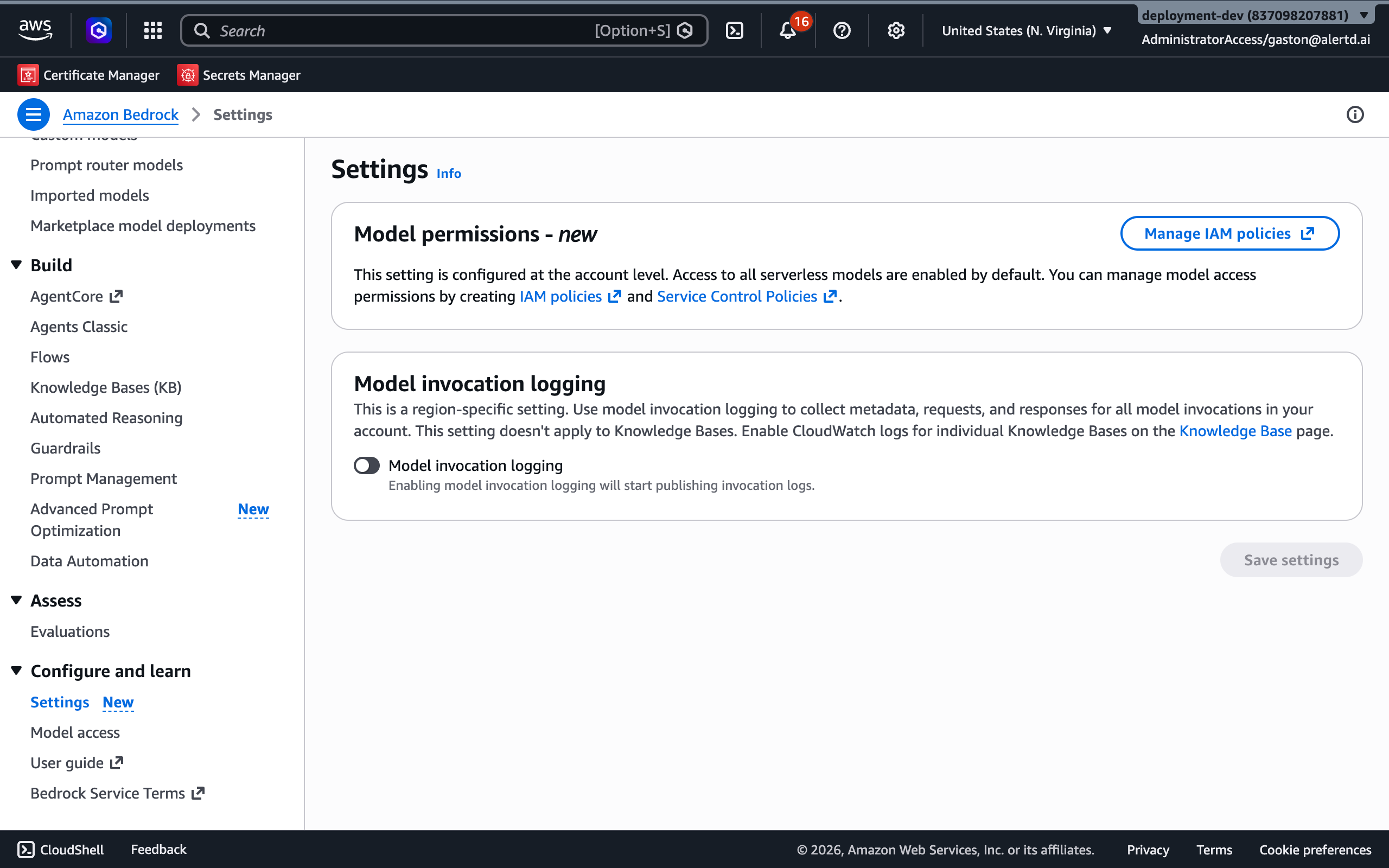
- If the Model invocation logging toggle is off, follow Path A.
- If it is on (and already writing to an S3 bucket), follow Path B.
Path A: Enable logging to the AlertD bucket
Use this path when invocation logging is not yet enabled. You will send logs to the S3 bucket that AlertD created during deployment.
Step A1: Find the AlertD app storage bucket
- Open the CloudFormation console and select your AlertD stack (for example,
alertd-v0-1-239).
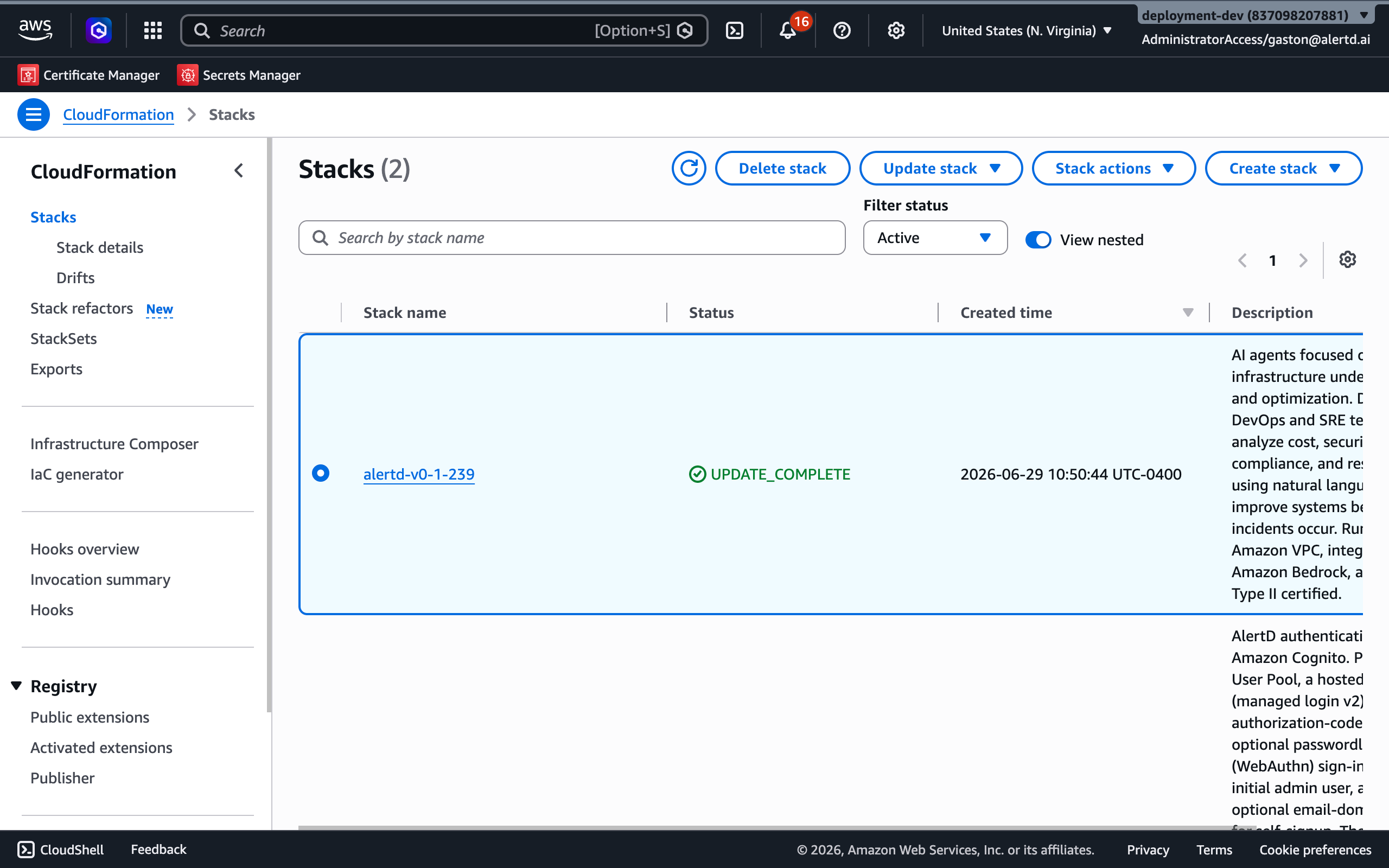
- Open the Resources tab and search for
AppStorageBucket. - Note the Physical ID of the
AppStorageBucketresource (typeAWS::S3::Bucket) — this is the bucket name, for examplealertd-v0-1-239-appstoragebucket-tiepizpnv95v.
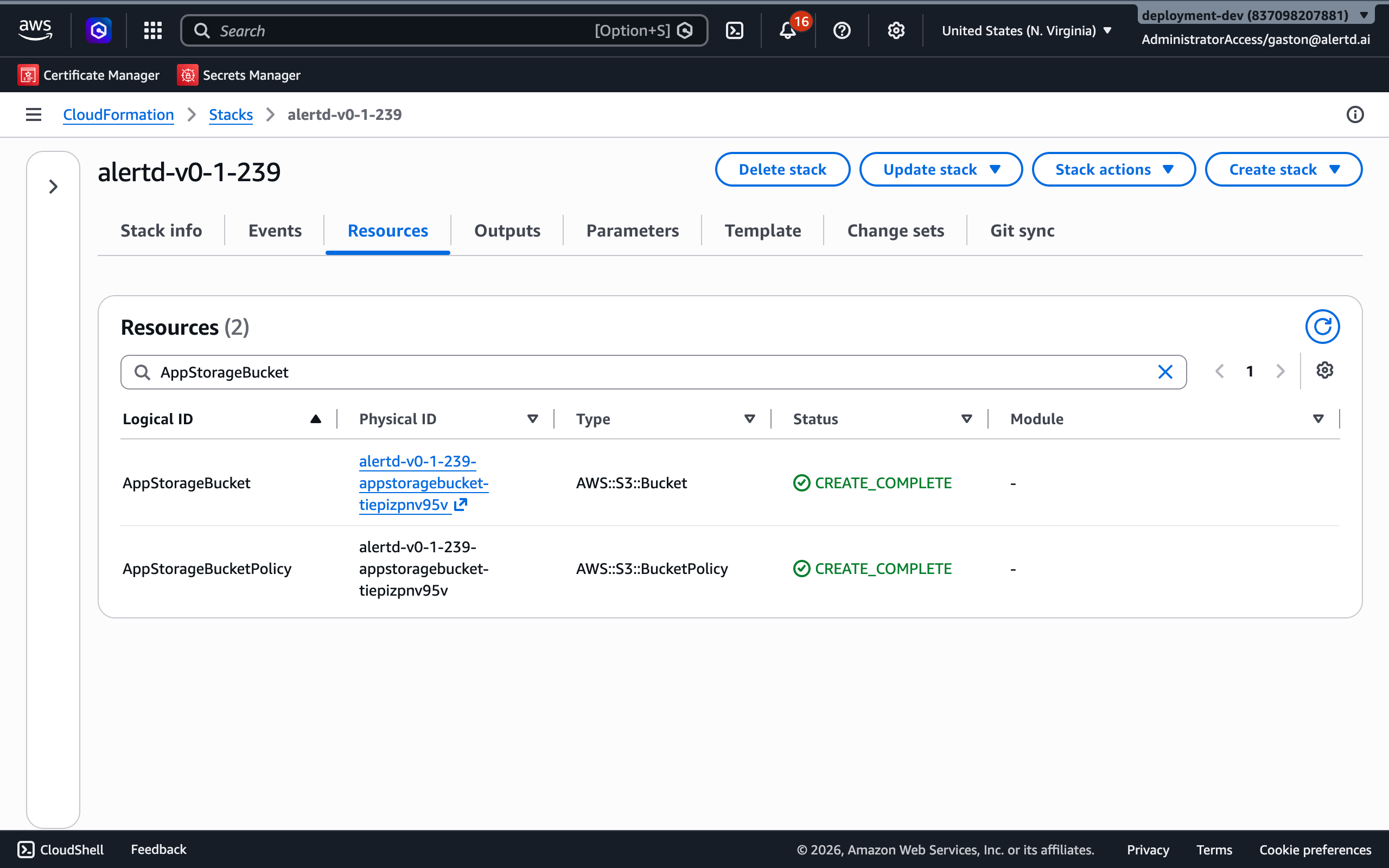
The random suffix (tiepizpnv95v) is unique to your deployment. Copy the exact value shown for your stack.
Step A2: Enable model invocation logging
- Return to Amazon Bedrock → Settings.
- Turn on the Model invocation logging toggle.
- Under Select the data types to include with logs, keep Text selected.
- Under Select the logging destinations, choose S3 only.
- In S3 configurations, enter the AlertD app storage bucket name you copied in Step A1.
- Choose Save settings.
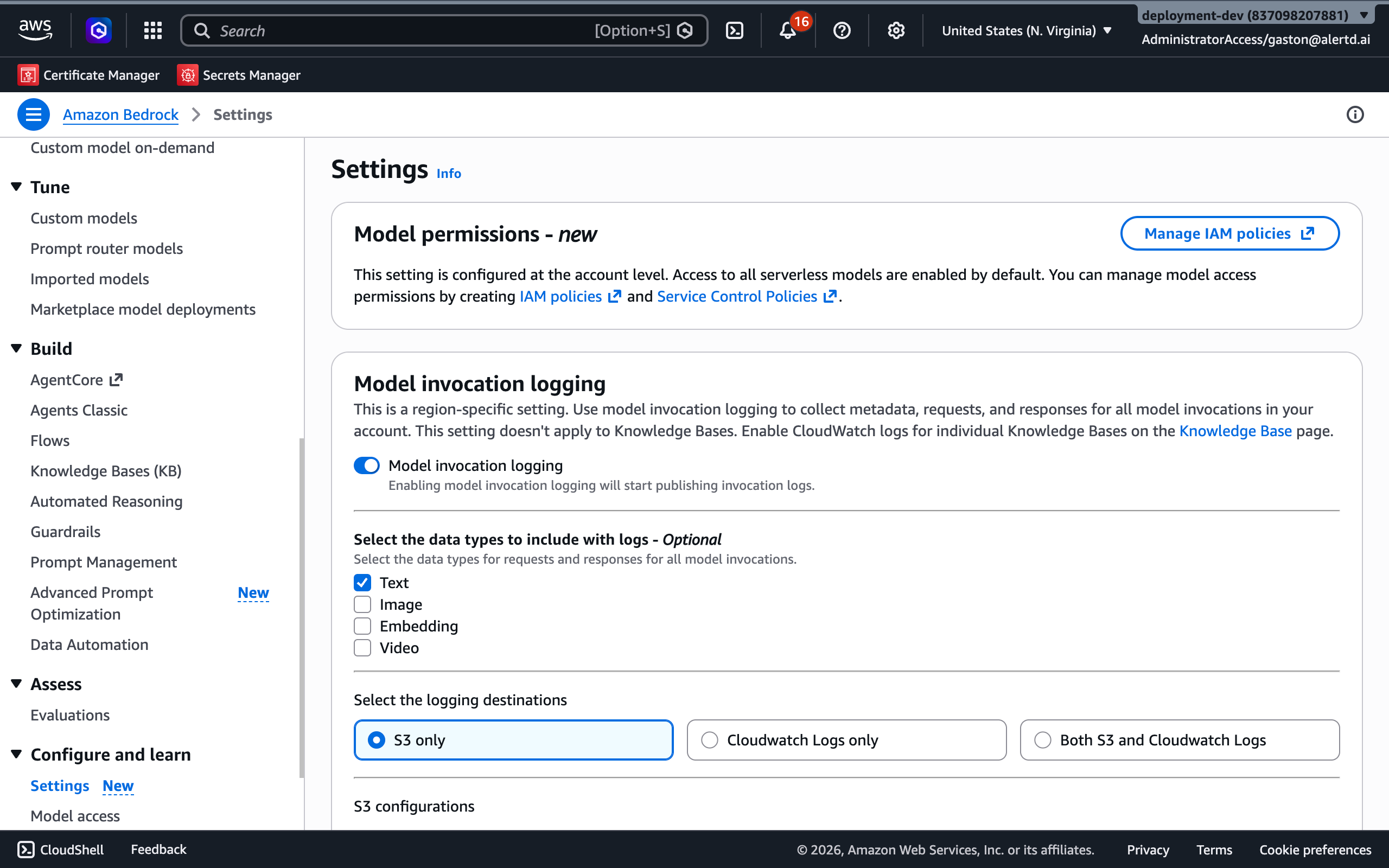
Because the logs are written to the AlertD app storage bucket, AlertD’s task role already has read access. No bucket policy change is required — you’re done.
Path B: Grant the AlertD task role access to an existing bucket
Use this path when invocation logging is already enabled and writing to a bucket you manage. You will add a statement to that bucket’s policy so the AlertD task role can read the logs.
Step B1: Copy the AlertD task role ARN
- Open the CloudFormation console and select your AlertD stack.
- Open the Resources tab and search for
TaskRole. - Open the
TaskRoleresource (typeAWS::IAM::Role) and copy its ARN, for example:
arn:aws:iam::837098207881:role/alertd-v0-1-239-TaskRole-p6nmqqofHyLL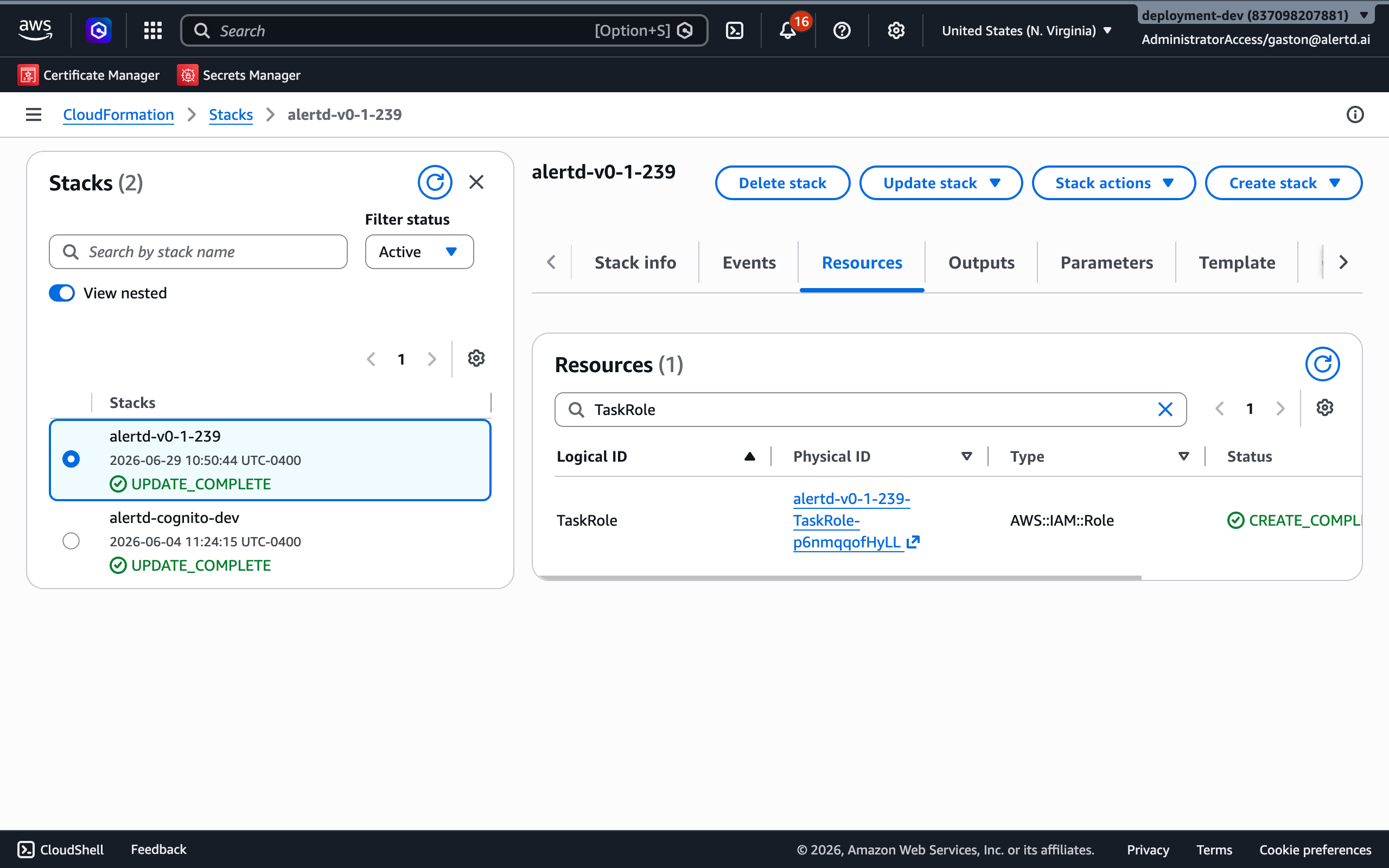
Step B2: Edit the log bucket’s policy
- Open the S3 console and go to the bucket that receives your Bedrock invocation logs.
- Open the Permissions tab and, under Bucket policy, choose Edit.
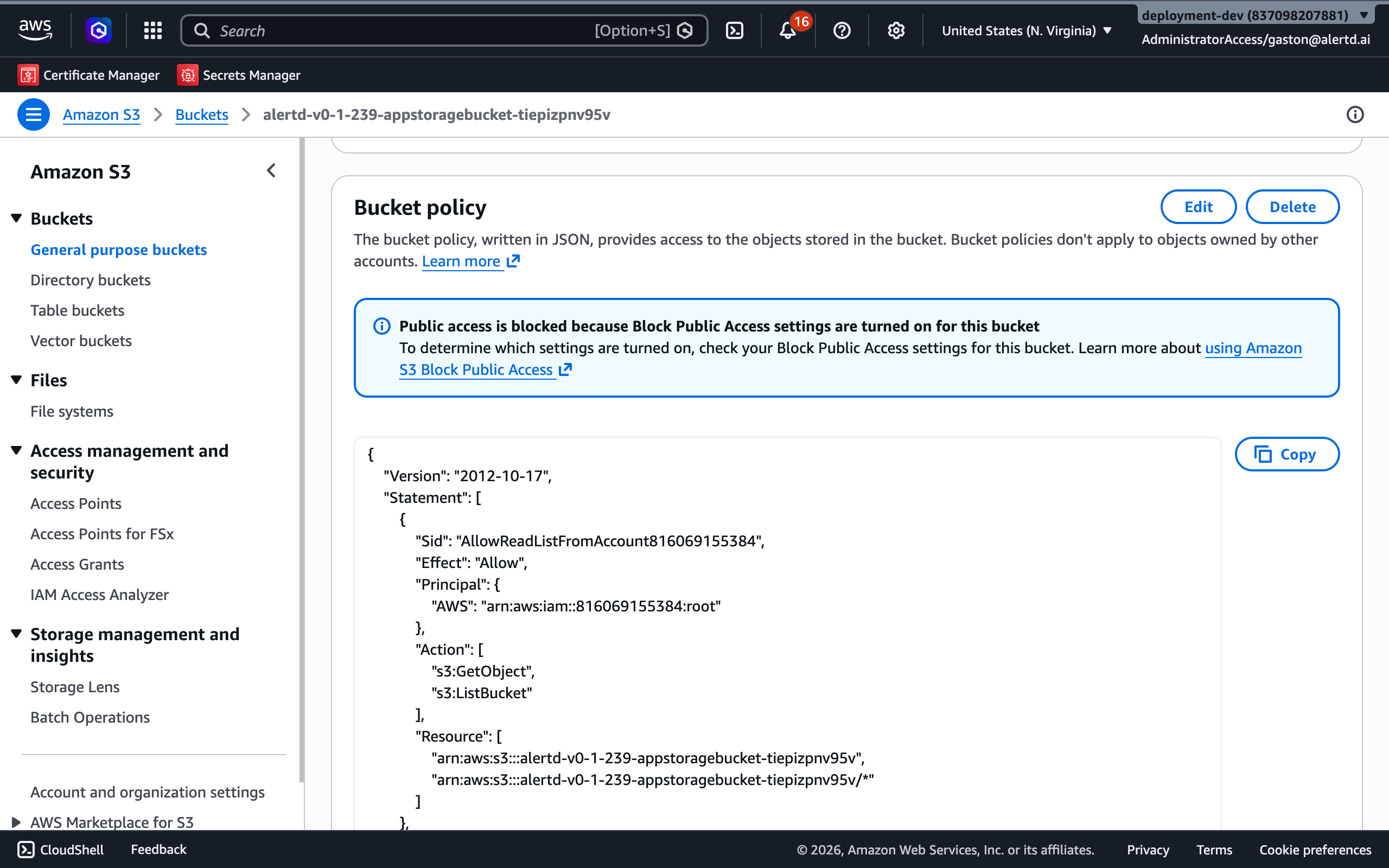
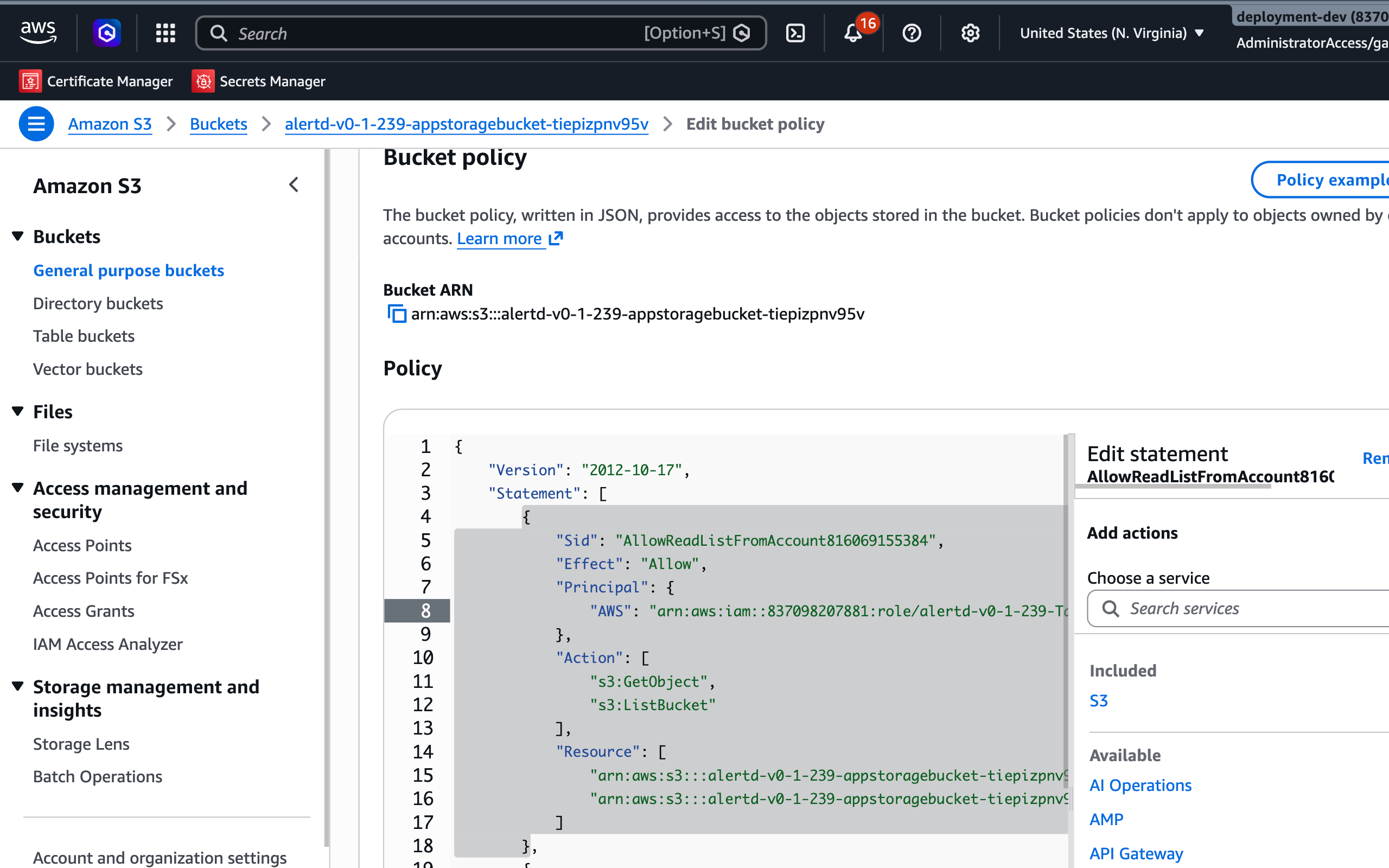
- Add a new statement to the existing
Statementarray that grants the AlertD task roles3:GetObjectands3:ListBucket. Replace the ARNs with your task role ARN (from Step B1) and your log bucket name:
{
  "Sid": "AllowAlertDTaskRoleReadLogs",
  "Effect": "Allow",
  "Principal": {
    "AWS": "arn:aws:iam::837098207881:role/alertd-v0-1-239-TaskRole-p6nmqqofHyLL"
  },
  "Action": [
    "s3:GetObject",
    "s3:ListBucket"
  ],
  "Resource": [
    "arn:aws:s3:::YOUR-BEDROCK-LOG-BUCKET",
    "arn:aws:s3:::YOUR-BEDROCK-LOG-BUCKET/*"
  ]
}
s3:ListBucket is the IAM permission that authorizes the ListObjectsV2 API call AlertD uses to enumerate log objects. It applies to the bucket ARN (no /*), while s3:GetObject applies to the object ARN (/*).
- Choose Save changes.
Add your statement alongside the existing statements — don’t replace them. Removing existing statements can break other access to the bucket.
Verify
Once logging is enabled and the AlertD task role has read access, AlertD begins ingesting Bedrock invocation logs on its next ingestion cycle. You can then ask questions about the prompts and responses observed in your account.